
 25 november 2025, 13:53
Email sending is a common feature on many WordPress websites. Whether it’s an eCommerce store and sending order confirmations, or a blog informing subscribers when new content is available, email delivery occurs one way or the other.
However, WordPress’s out-of-the-box email delivery system creates several pain points for website owners. One of the biggest issues is when WordPress confirms an email has been sent, but the message never reaches your customer’s primary inbox, or worse, it ends up in the spam folder.
A dedicated SMTP solves this problem by ensuring reliable email delivery. With an SMTP provider, setup is easy, and your emails reach their intended destination anytime.
In this guide, you will learn everything you need to know about sending emails from WordPress: how WordPress natively handles sending email, how to use wp_mail(), how to set up SMTP for reliable delivery, and ways to troubleshoot common email issues.
By the end of this guide, you will know how to implement a robust email solution for your WordPress site.
How Does WordPress Send Emails?
Before we dive further into this guide, it is important to understand how WordPress sends emails. WordPress provides a built-in function called wp_mail() for sending emails. This function serves as a wrapper around the PHPMailer library, which is the actual email-sending engine. The wp_mail() function is pluggable, meaning developers can replace it with custom implementations if needed.
The function signature looks as follows:
|
wp_mail( $to, $subject, $message, $headers= ”, $attachments= array() ) |
When your code calls wp_mail(), WordPress processes the request, passing it through various filters and hooks, applying default values for missing parameters, and hands off the email to PHPMailer. PHPMailer then attempts to send the email, using whatever method is configured, which by default is the PHP mail() function.
Limitations of the default setup and why you should switch to SMTP
Since WordPress uses PHP’s mail() function by default to send emails, it relies on the server’s Mail Transfer Agent (MTA) to deliver messages. This approach has its limitations:
- Lacks built-in authentication
- Doesn’t support encryption
- Provides minimal error reporting
- Uses the web server’s shared IP address, which may have a poor reputation
The native WordPress function also makes it quite complicated to build HTML templates or add attachments and images. More importantly, it struggles with email headers, which is one of the reasons emails sent using native wp_mail() may land in spam.
Other common problems include emails never arriving (despite WordPress indicating successful handoff), messages landing in spam folders, incomplete or malformed headers, and character encoding issues.
These issues have been discussed across various developer forums, such as Reddit. The image below shows a response to a question from a Reddit user, confirming WordPress’s email delivery problems:
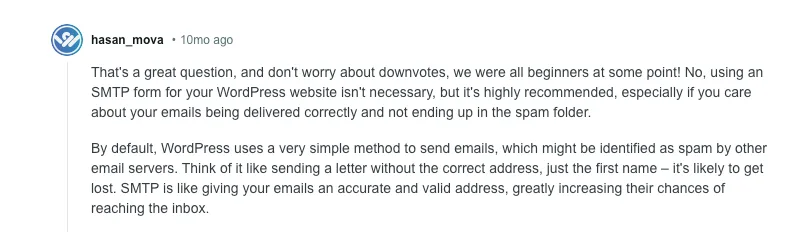
The root causes of these delivery failures stem from three main areas:
- Inadequate server configuration (blocked SMTP ports, missing or misconfigured MTAs, and restrictive PHP settings)
- Missing email authentication records (SPF, DKIM, and DMARC)
- Shared hosting limitations
Shared hosting environments are particularly problematic because multiple websites share the same IP address, meaning one site’s poor email practices damage the reputation for all other sites on that server. Without proper DNS authentication records, receiving mail servers cannot verify the legitimacy of emails, leading to aggressive spam filtering or outright rejection.
Sending Email from WordPress Using wp_mail() Function
Let’s take a look at the basic wp_mail() syntax and parameters:
|
wp_mail( |
- $to: Accepts a single email address as a string or multiple addresses as an array. Email addresses must comply with RFC 2822 format. Valid formats include:
- ‘[email protected]’
- ‘User Name <[email protected]>’
- array(‘[email protected]’, ‘[email protected]‘)
- $subject: A plain text string for the email subject line. Special characters are automatically encoded.
- $message: The email body content. By default, this is interpreted as plain text. To send HTML, you must set appropriate headers (covered in the next section).
- $headers: Optional headers to control email behavior. Can be a string with headers separated by CRLF (rn) or an array of header strings.
- $attachments: Full file system paths to files you want to attach. The files must be readable by the web server.
Sending a Simple Text Email
Here’s a basic example that sends a plain-text email:
|
<?php |
Important Note: A return value of trueonly means WordPress successfully handed the email to the local server’s mail system. It does NOT guarantee the recipient received the email. The email could still fail at the server level or be filtered as spam at destination.
Configuring Email Headers
Headers control email behavior and appearance. Here’s how to use them:
|
<?php |
Note that WordPress filters the From address through wp_mail_fromand From namethrough wp_mail_from_name filters, which take precedence over headers.
Setting From Name and Email Address
The default WordPress sender is [email protected] with the name “WordPress”. To customize this, use filters:
|
<?php |
Use a “no-reply” or a dedicated transactional email address as your From address. Never use a personal email address or an address from a different domain than your website’s.
How to Send HTML Email in WordPress
This section covers the various ways you can send HTML emails in WordPress.
Setting Content Type for HTML Emails
WordPress defaults to plain text emails. To send HTML, you must set the Content-Type header:
|
<?php |
Important note: If you use the filter method, you must remove the filter immediately after sending the email. Failing to do so will cause all subsequent wp_mail() calls (including those from other plugins) to send HTML emails, potentially breaking them.
Creating HTML Email Templates
You can create professional HTML email templates by using plugins like Email Templates. To do this, create a separate template file called templates/email-template.php. An example template is shown below:
|
<?php |
Using ob_start() for Complex Templates
The ob_start() function captures output into a buffer, allowing you to use PHP template files:
|
<?php |
This approach keeps your code clean, makes templates reusable, and allows you to use WordPress functions within templates.
Sending Emails with Attachments and Multiple Recipients
This section covers the various ways you can send emails with attachments and multiple recipients.
Adding File Attachments to WordPress Emails
The wp_mail() function accepts an array of file paths for attachments:
|
<?php |
Important Notes:
- Use absolute file system paths, not URLs
- Ensure files exist and are readable by the web server
- WordPress won’t return an error if a file doesn’t exist, it will just skip that attachment
- Large attachments may cause timeouts or exceed PHP memory limits
- Attachments increase email size, affecting deliverability
The code below shows an example of a dynamic attachment:
|
<?php |
Sending to Multiple Recipients
You can send to multiple recipients in several ways:
|
<?php |
For bulk emails, send individual emails in a loop rather than using multiple recipients. This allows personalization and prevents recipients from seeing each other’s email addresses.
Using CC and BCC Headers
Carbon copy (CC) and blind carbon copy (BCC) allow you to send copies of your email:
|
<?php |
Handling Email Encoding
WordPress handles UTF-8 encoding by default, but you can customize it to meet specific requirements. Here’s how to implement custom email encoding:
|
<?php |
In most cases, however, UTF-8 will cover all your needs for accurately displaying characters from various languages, including accented letters, special symbols, and non-Latin scripts.
How to Send Emails Using WordPress SMTP Plugins and UniOne SMTP API
We have previously addressed some of the limitations of using WordPress’s default email system that often lead to delivery problems. This section shows how you can walk around these limitations by using an SMTP solution through a dedicated plugin. You can overcome technical constraints while simultaneously improving user experience.
What makes this effective?
The plugin fundamentally alters your email architecture. Instead of WordPress defaulting to PHP’s mail() function, the plugin redirects all outgoing messages through the SMTP protocol. This redirection channels your emails through specialized email service providers designed for reliable delivery.
Here are some of the main advantages of using SMTP services over the default mail().
- Encryption: SMTP connections use TLS/SSL encryption, protecting email content and credentials during transmission.
- Reliability: SMTP services are designed specifically for email delivery, with redundancy, monitoring, and automatic retry logic that the PHP mail() function lacks. If a delivery fails, SMTP services automatically retry, increasing your success rate.
- Authentication: Dramatically improves deliverability by establishing trust with receiving servers.
In this section, you’ll learn how to send emails using Unione’s SMTP service and WP Mail SMTP. WP Mail SMTP is the most popular WordPress SMTP plugin, trusted by over 4 million active installations.
Step 1: Sign up for a UniOne account
Follow the steps in the “How to Send emails using PHPMailer and UniOne SMTP” section of this blog article to learn how to sign up for a UniOne account and verify your domain.
To learn more about adding a new domain and verifying your DNS in UniOne, check out this guide.
Step 2: Install Plugin
To install the Plugin:
- Sign in to your WordPress account and navigate to Plugins in the left navigation menu. Type in “WordPress SMTP plugin”. You’ll find the plugin by WPForms.
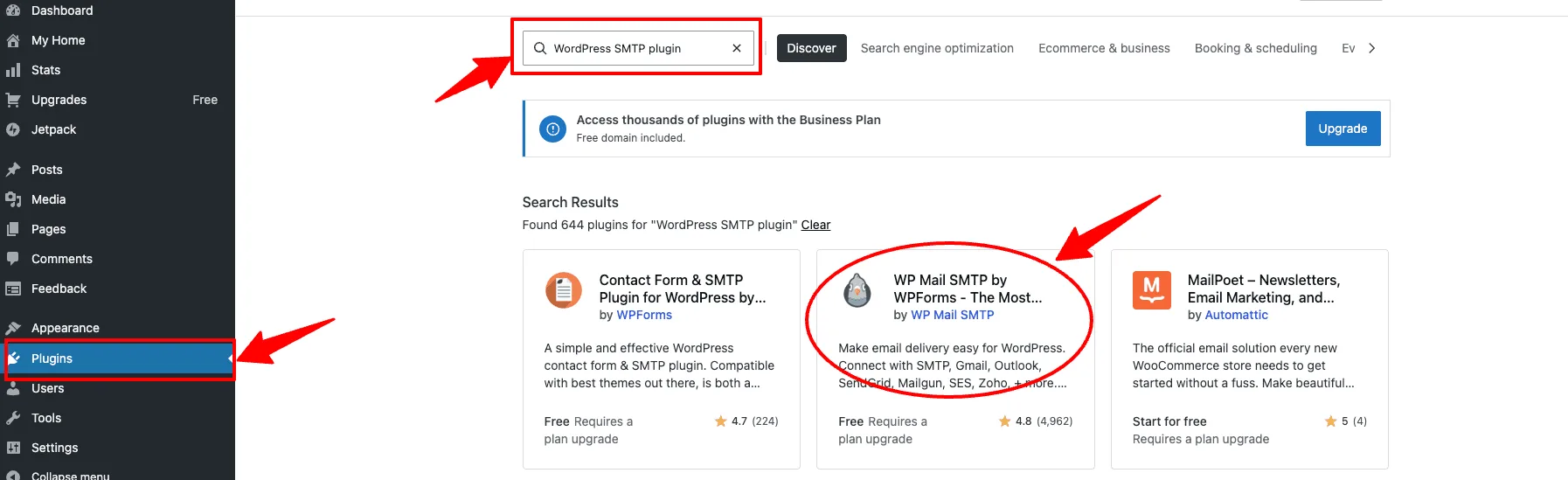
- Click Install Now.
- Click Activate once installation completes.
Step 3: Run the Setup Wizard
To run the setup wizard:
- Navigate to WP Mail SMTP-> Settings in your WordPress menu. The Setup Wizard launches automatically on first access.
- Enter your From Email address (for example, [email protected]). This should be an email address that uses your domain name verified in UniOne.
- Enter your From Name (for example, your company name or “Support Team”). This is the name recipients see in their inbox.
- Click Saveand Continue to proceed.
Step 4: Choose your Mailer
WP Mail SMTP supports multiple email sending services. Your options include SendLayer, Gmail/Google Workspace, Microsoft 365/Outlook.com, SMTP.com, Brevo (formerly Sendinblue), Mailgun, SendGrid, Amazon SES, and other SMTP providers.
To integrate UniOne as your desired mailer:
- Select the Other SMTP option.
- Configure SMTP settings by providing the following details from the UniOne SMTP API
- SMTP Host: smtp.eu1.unione.io or smtp.us1.unione.io
- Encryption: TLS (recommended) or SSL
- SMTP Port: 587 for TLS or 465 for SSL
- SMTP Username: your user_id(you can see it in the upper left corner of the screen under your email after login).

- SMTP Password: Your account API key or project_api_key. Navigate to Account> Security> API key to get your API key.
3. Click Save Settings.
Step 5: Test Your Configuration
Email failures often go unnoticed until they cause significant problems. Unlike website errors that users immediately notice, email delivery failures are silent. You may not know your emails aren’t reaching recipients until customers start to complain about missing confirmations or can’t reset their passwords.
WP Mail SMTP includes a built-in email test to verify everything works correctly. To test email sending in WordPress:
- Go to WP Mail SMTP, then Tools, then Email Test.
- Enter your email address in the test field.
- Click Send Email and wait a few seconds.
- Check your inbox or spam folder for the test email. If the test fails, the plugin displays detailed error messages to help you troubleshoot the issue.
You can also leverage our SMTP debug tool for in-depth testing of SMTP connection.
Check out our video, showing you how to sign up for a UniOne account, verify your domain, and connect our SMTP API with WordPress.
Sending Email from WordPress Without Plugins
You can configure SMTP without plugins by adding parameters to wp-config.php. This approach works best if you’re comfortable with code and prefer avoiding extra plugins. You’ll directly configure SMTP settings in your wp-config.phpand make a few theme adjustments. When set up correctly, it helps keep your WordPress site lean without plugin bloat.
You’ll need an SMTP service like UniOne (this tutorial assumes you’ve already set up an account and verified your domain). To make this work, access wp-config.php in your site’s root directory using SSH or FTP, and then add your SMTP configuration settings.
One important note: work within a child theme, not your main theme. Otherwise, updates will wipe out your changes.
Here’s what the configuration code may look like:
|
<?php |
Once you’ve added the SMTP settings to wp-config.php, head over to your functions.php file. Find it by navigating to your WordPress dashboard, then navigate to Appearance-> Theme Editor.
Paste in the required code snippet below to activate your changes.
|
// wp-content/mu-plugins/custom-smtp.php |
Again, make sure you’re editing the child theme version to protect your work from future updates.
Note: This approach works without any plugins but requires manual updates and doesn’t provide debugging tools or test email functionality.
Using pre_wp_mail Hook for Custom Solutions
WordPress 5.7+ introduced the pre_wp_mailhook, allowing you to intercept and modify email sending:
|
<?php |
This hook is useful when integrating with email services that don’t have WordPress plugins or when you need complete control over email sending.
How to Troubleshoot Email Sending Issues in WordPress?
WordPress email problems typically fall into three categories: configuration errors, authentication failures, and deliverability issues.
Start by identifying which category affects you. If wp_mail() returns false, the problem is configuration-related. If emails are sent but never arrive, check authentication records (SPF, DKIM, DMARC). If emails land in spam folders, you have deliverability issues.
Enable WordPress debugging to capture error messages by adding these lines to wp-config.php:
|
<?php |
Check wp-content/debug.log for detailed error messages. Common errors include “SMTP connect() failed” (firewall blocking ports 587/465), “Could not authenticate” (wrong credentials), and “Connection timeout” (server blocking SMTP).
For authentication issues, verify your DNS records using online tools like MXToolbox. If records are correct but emails still fail, your IP or domain may be blacklisted. Check this at multirbl.valli.org. To prevent blacklisting issues that can permanently damage your sender reputation, read UniOne’s article on spam blacklist prevention.
Poor deliverability often stems from missing authentication or poor sender reputation. Follow the comprehensive strategies in UniOne’s guide on Improve Email Deliverability to optimize inbox placement.
For persistent issues, implement systematic testing to isolate the problem. Test the basic PHP mail function first with this simple script outside WordPress to determine if the issue is server-level or WordPress-specific:
|
<?php |
If server mail works but WordPress emails fail, the issue is in your WordPress configuration. Verify SMTP plugin settings and credentials. If server mail also fails, contact your hosting provider about email restrictions. As a quick diagnostic, use this snippet to test your complete email stack:
|
<?php |
This logs test results to help pinpoint whether issues are at the WordPress level, PHPMailer level, or SMTP configuration level. Most email problems are resolved by switching from PHP mail() to authenticated SMTP through a plugin like WP Mail SMTP with a reliable provider like UniOne.
Conclusion
Getting your WordPress emails delivered doesn’t have to be too complicated. While the default PHP mail() function is feature-limited and often sends emails straight to spam, switching to SMTP solves most delivery problems almost immediately.
Whether you go with WP Mail SMTP for simplicity or add SMTP settings directly to your code, the improvement is worth it. Your password resets will actually reach users, your order confirmations will land in inboxes, and you’ll stop wondering why customers aren’t getting your emails.
You now have everything you need, from basic wp_mail() examples to HTML templates and troubleshooting steps. Pick a reliable SMTP provider like UniOne, follow the setup steps in this guide, and test your configuration. Your users (and your inbox placement rates) will thank you.
Frequently Asked Questions
What is the best way to send emails from WordPress?
SMTP plugins offer the highest reliability for WordPress email delivery by routing messages through established email service providers, completely avoiding the limitations of your web host’s mail server.
How does WP Mail SMTP work?
Rather than relying on WordPress’s standard email function (which frequently struggles with deliverability), WP Mail SMTP takes control of your site’s email system. It modifies the wp_mail() function to send messages through a dedicated SMTP server rather than the basic PHP mail function.
Do I need my own SMTP server to send emails?
An SMTP server is essential for delivering emails to their intended recipients. It also verifies that messages originate from a legitimate, active email account. Still, you will be better off with using a provider’s SMTP server, instead of setting up and maintaining your own.
Related Services
- Explore UniOne’s SMTP Service for reliable email delivery.
- Use our Email Testing tool to verify your email setup.