
SendGrid to UniOne Migration: Complete Instructions

Trusted by Customers Worldwide









Why Switch from SendGrid to UniOne?
If you’re looking for a more predictable, developer-friendly email API experience, UniOne is ready to help.
Here’s why many businesses choose to switch from SendGrid:
| UNIONE | |
|---|---|
| Consistent inbox placement | SPF, DKIM, DMARC, custom tracking domains, and dedicated IPs (available on any plan) are your email deliverability success set |
| Clear, simple pricing | Starting from just $4/month — with all the features included |
| 24/7 expert support | Available to every customer, not just top-tier plans |
| 300+ predesigned templates | Tailored for transactional and marketing emails with visual editor backed up by AI |
| Friendly API and SMTP | Reintegrate your email streams quickly with fast setup and minimal configuration |
| Built-in email validation | Keep mailing lists clean and reduce bounces |
| Advanced analytics | Exportable logs and detailed reporting |
Preparing for Migration
Step-by-Step Migration Process
Below is a clear, easy-to-follow process to switch from SendGrid to UniOne without downtime.
Creating a UniOne Account
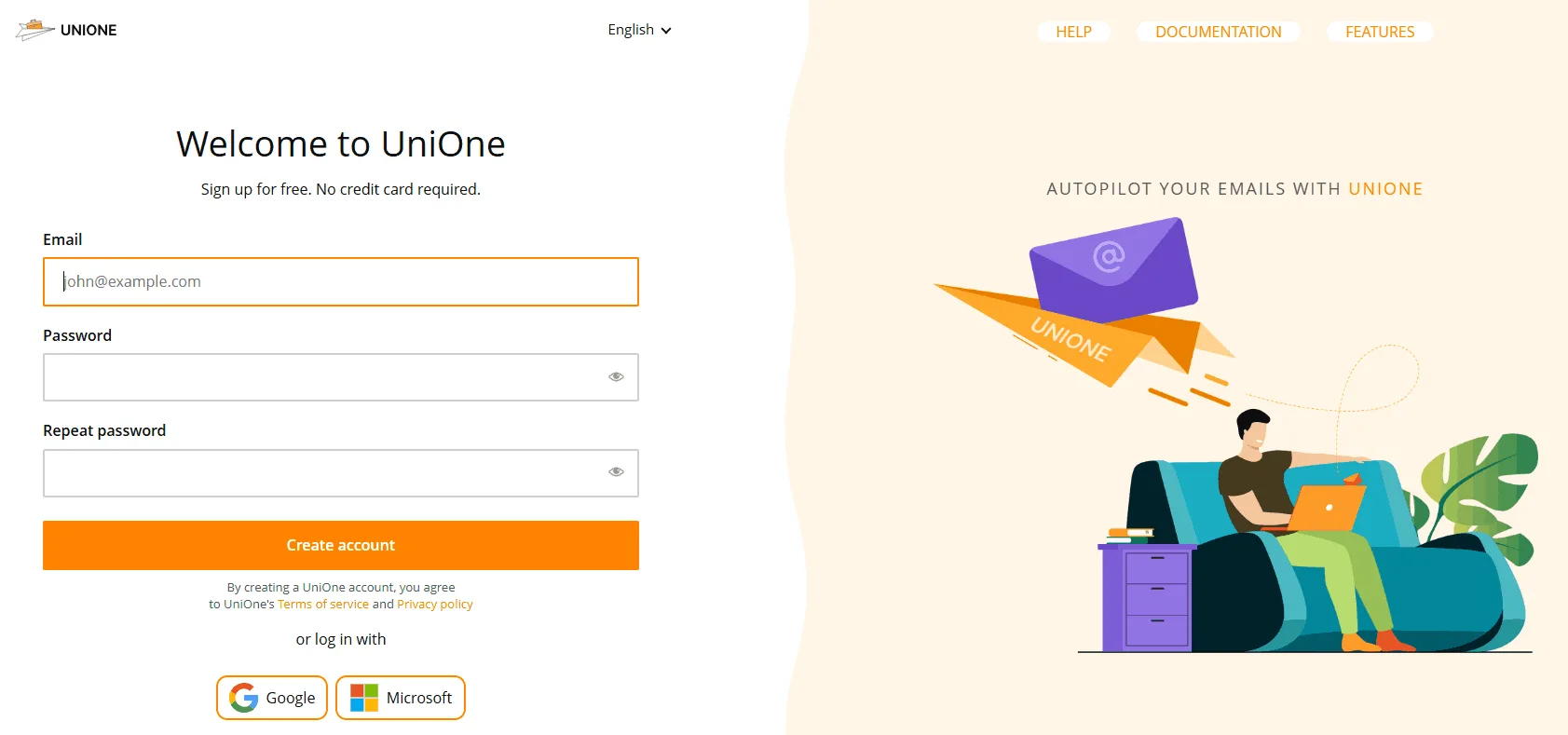
- Sign up to create a new account.
- Verify your email address.
- Log in to see the Welcome dashboard guiding you through the following steps.
Every new customer gets a 4-month free trial with 6,000 emails per month, which is usually more than enough for onboarding and testing your integration before fully switching.
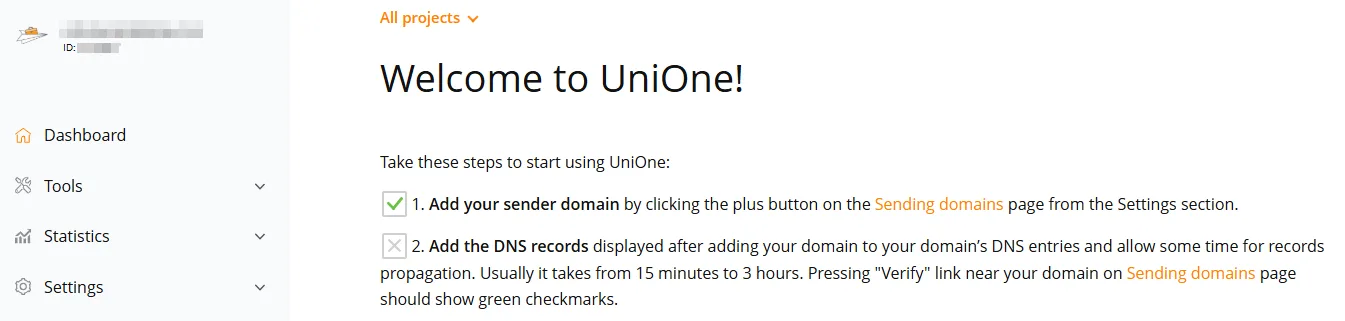
Verifying Email Domain
To ensure email deliverability, set up:
- SPF record
- DKIM record
- DMARC (required)
- Custom tracking domain
At UniOne, we show the necessary DNS values right in your dashboard under Sending Domains Settings when you add the specific domain. Just copy the records into your DNS provider’s panel and wait until they propagate.
Send Email via UniOne API
To migrate from the SendGrid API to the UniOne API:
- Find your UniOne API key in the Account -> Security -> API key tab. If you create a setup using Projects, the API key for each project will be available in the project’s properties.
- Replace your SendGrid API endpoint with UniOne:
https://api.unione.io/en/transactional/api/v1/en/transactional/api/v1/email/send.json - Adjust your request format if needed.
- Test with your sandbox or dev environment before going live. You can also send test interactive API requests right from the UniOne API docs pages.
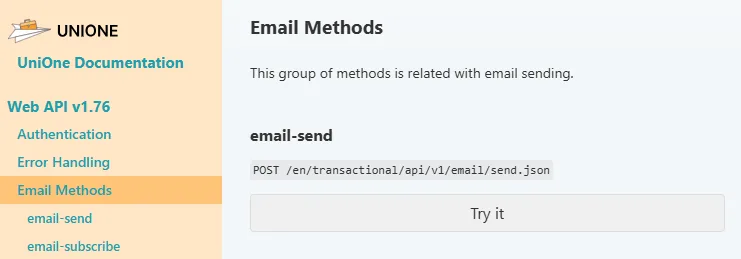
UniOne supports all major languages: Ruby, PHP, Python, Node.js, Java, C#, Go, and more, while also offering many ready-to-use SDKs and integrations with other services. And the list keeps getting bigger!
Send Email via UniOne SMTP
If you prefer SMTP over Web API or want to go with a quicker integration option first:
- Go to the SMTP Configuration page in the dashboard.
- Locate the SMTP server name, port, login, and Password.
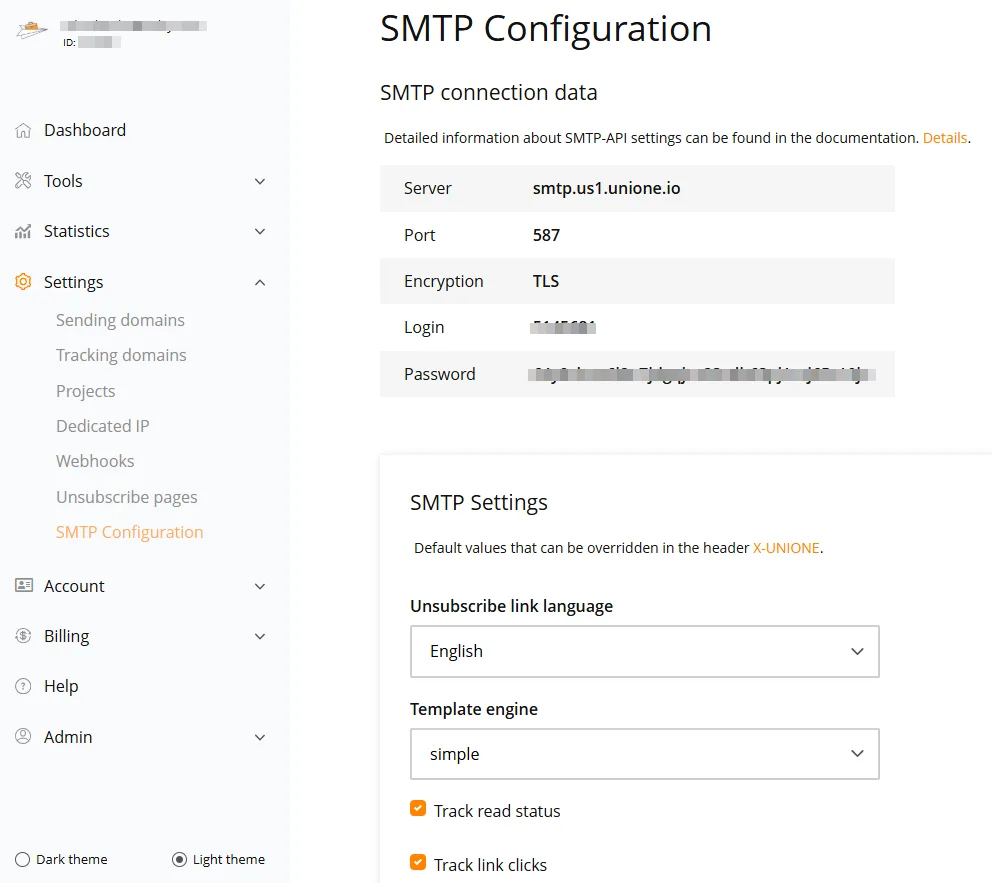
- Replace your SendGrid SMTP settings with UniOne’s values in your application.
- Send a test email to confirm everything works. Feel free to try the SMTP Debug Tool for a no-cost check-up.
SMTP migration usually takes just a few minutes.
Additional Migration Steps
Depending on your current setup and required functionality, you might also need to:
- Recreate or import email templates
- Configure webhooks for deliveries, opens, clicks, bounces, or unsubscribes
- Organize separate sending streams using projects
- Add suppression lists (highly recommended)
- Update all your settings with new endpoints and credentials
- Set up verification of your subscribers’ email addresses using our email validation API
In the meantime, if there are any questions you need assistance with during the migration process, feel free to contact our support team, available 24/7 via live chat and email, so we can guide you through each step in more detail.
FAQ

Time to Switch to UniOne?