

 16 july 2025, 11:26
Email remains a cornerstone of digital communication, from marketing campaigns to transactional messages. But coding HTML emails brings its own set of challenges – limited CSS support, inconsistent rendering across clients, and complex responsive design requirements.
This guide is designed to help developers navigate the intricate world of HTML email development. We’ll share tips and best practices for different approaches to creating HTML emails – hand-coding and using visual HTML email builders.
What is an HTML email?
HTML email is an email that uses HyperText Markup Language (HTML). It allows you to include images, colors, fonts, tables, and responsive layouts in emails, in a way similar to any web page. This gives your readers a visually rich and branded experience.
How does HTML email differ from plain text?
Unlike plain text emails that can only display basic text, HTML emails showcase your brand’s personality through custom designs, interactive elements, and multimedia content. They also support responsive design, automatically adjusting their layout to look great on desktop computers, tablets, and smartphones.
This format lets marketers and businesses see how people interact with their emails, add buttons that actually work when you click them, and design layouts that draw your attention to the most important parts. Sure, HTML emails take a bit more know-how than just plain text, but the payoff is huge – you get way more creative control and can create emails that really grab attention and get results.
Below is a comparison table of plain text and HTML email formats.
|
Feature |
Plain Text Email |
HTML Email |
|
Format |
Plain text |
HTML and CSS |
|
Visual Design |
No styling, images, or layout |
Supports fonts, colors, images, and layouts |
|
File Size |
Minimal |
Larger due to styling and media |
|
Compatibility |
Universal support across all devices and clients |
Varies by email client; requires careful coding |
|
Engagement Tools |
No tracking or interactivity, links must be opened manually |
Supports links, CTAs, open and click tracking |
|
Accessibility |
High (screen-reader friendly by default) |
Requires some effort to ensure accessibility |
|
Deliverability |
Marginally better (less likely to hit spam) |
A bit more likely to trigger spam filters |
|
Use Case |
Simple, personal, or system messages |
Marketing, newsletters, branded or promotional emails |
Below is an example of an engaging HTML email letter.
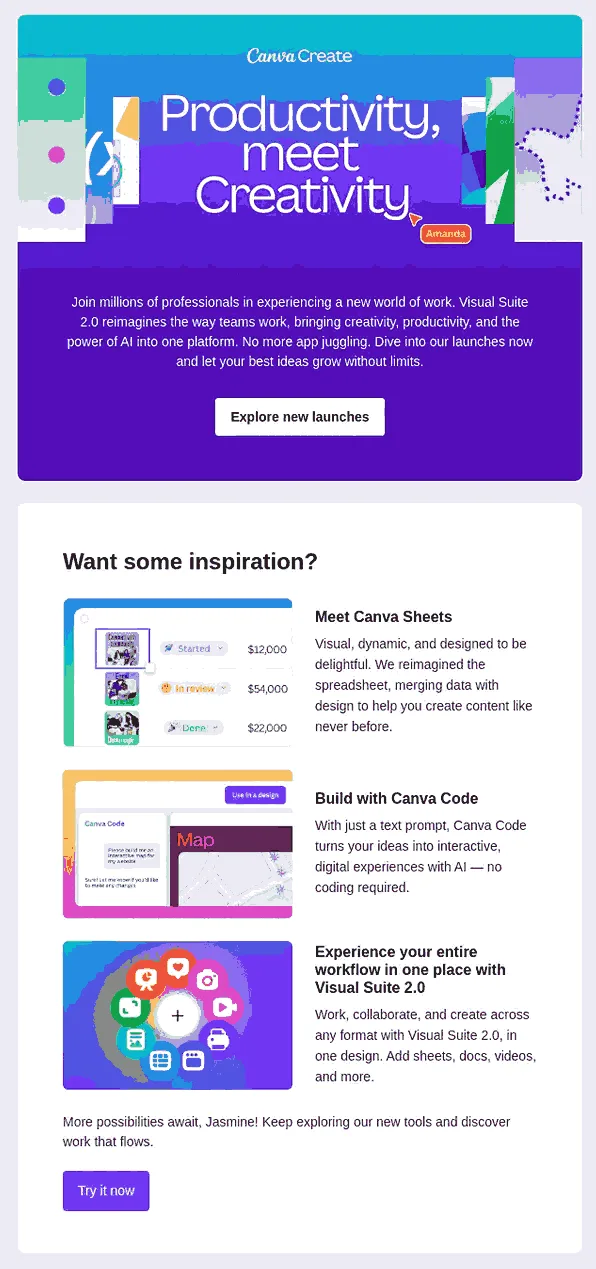
Source: reallygoodemails.com
Deciding whether to use HTML in your emails depends on your goals and audience. Plain text emails offer universal compatibility, faster load times, and better deliverability. In contrast, HTML emails provide rich visual design, interactive elements, and tracking capabilities – features perfect for marketing. However, even transactional messages will usually include links your users need to follow, so nowadays plain text emails have very limited use, HTML being the default option.
Note, however, that all HTML emails must include a matching plain text part (visual email builders usually add this automatically). This is vital not only for legacy email clients support but also for better deliverability. HTML emails with a missing or non-matching text part are way more likely to be blocked by spam filters.
Choosing Between Visual Builders and Manual Coding
Drag-and-drop builders
When creating HTML emails, developers face a key decision: should you use a visual email builder or write custom code? Each approach offers distinct advantages and limitations.
Visual tools excel when you need speed and want to include non-technical team members in the process. These builders let marketers create professional emails without any coding knowledge.
Email builders are best for:
- Teams with limited development resources
- Projects with tight deadlines
- Empowering non-technical staff to create content
Their main advantage is accessibility – anyone can jump in and start building emails right away.
Modern solutions like the UniOne’s Email HTML Builder have evolved to offer sophisticated features, making them viable options even for technically-minded teams.
Custom coding
Custom coding becomes necessary when your email needs go beyond what standard builders can handle. If you need complex layouts, interactive features, advanced personalization, or must follow strict brand guidelines, hand-coded HTML gives you the precision you need.
Custom development also gives you better control over file sizes, which helps emails load faster.
Manual coding is best for:
- Complex email designs
- Interactive elements
- Advanced personalization
- Strict brand requirements
- Optimizing file sizes and load times
Custom-coded emails may also work better with your existing development setup. They integrate smoothly with version control systems and make it easier to:
- Reuse code across different campaigns
- Run A/B tests more efficiently
- Connect with customer data platforms for personalized content
Here’s a comparison table of visual builders versus custom coding for HTML email development:
|
Feature |
Visual Builders |
Custom Coding |
|---|---|---|
|
Learning Curve |
Easy, visual interface |
Requires coding skills |
|
Speed |
Fast |
Slower |
|
Flexibility |
Limited |
Full control |
|
Compatibility |
Pre-optimized |
Manual testing needed |
|
Code Quality |
Often bulky HTML |
Clean, optimized |
|
Collaboration |
Non-technical friendly |
Developer-dependent |
|
Version Control |
Limited or not available |
Fully compatible |
|
Customization |
Basic changes |
Pixel-perfect |
|
Maintenance |
Platform-dependent |
Needs updates |
|
Cost |
Subscription-based |
You pay for skills |
The most successful email strategies leverage both approaches. They use builders for standard campaigns and custom coding for complex, high-impact emails.
Consider these factors when deciding:
- Your team’s technical skills
- How complex your campaigns are
- How many emails you send
- Your long-term growth plans
Many companies start with builders to get their email program up and running, then add custom coding as their needs grow and the team gains experience.
Tips and Best Practices for Hand-Coding HTML Emails
HTML emails can be created in two main ways: coded manually or built using visual email builders. If you’ve chosen to hand-code your HTML emails – still a widely used approach – read further for practical tips and best practices to help you do it effectively.
But before we dive into details,let’s take a look at the most popular email clients and understand how their compatibility differences impact your design and coding choices.
Email Client Compatibility
One of the biggest challenges in HTML email development is dealing with the inconsistent support across different email clients. Email clients are software apps that let you read, create, send, and organize email. They come in different forms, but all serve the same purpose. They connect to your email server and make your messages accessible and manageable.
Unlike web browsers, email clients often lag behind in adopting modern HTML and CSS standards, and sadly, each one has its own quirks and limitations. Understanding these differences is essential to avoid broken layouts and ensure your message looks professional everywhere.
Below is a comparison table of 10 of the most popular email clients showing how well they support common features used in email design.
|
Email client |
CSS Support |
Web Fonts |
Media Queries |
Background Images |
Animated GIFs |
|
Gmail (Web & App) |
🟠 |
❌ |
✅ |
🟠 |
✅ |
|
Outlook Desktop (Windows) |
❌ |
❌ |
❌ |
🟠 |
❌ |
|
Outlook 365 (Web) |
✅ |
❌ |
✅ |
🟠 |
✅ |
|
Apple Mail (macOS & iOS) |
✅ |
✅ |
✅ |
✅ |
✅ |
|
Yahoo Mail |
✅ |
❌ |
✅ |
✅ |
✅ |
|
Thunderbird |
✅ |
✅ |
✅ |
✅ |
✅ |
|
Samsung Email |
✅ |
✅ |
✅ |
✅ |
✅ |
|
ProtonMail |
🟠 |
❌ |
✅ |
🟠 |
✅ |
|
Zoho Mail |
✅ |
❌ |
✅ |
🟠 |
✅ |
|
Spark Mail |
✅ |
❌ |
✅ |
🟠 |
✅ |
- ✅ – Supported
- 🟠 – Partially supported
- ❌ – Poorly/Not supported
To test your email’s appearance in different clients, you can use testing services like Litmus or Email on Acid. However, be sure to also test your HTML email campaigns in real email clients, as client updates can change rendering behavior.
Structuring HTML Email for Maximum Compatibility
To ensure your HTML emails render consistently across all major email clients, follow a table-based layout and use inline CSS. Unlike modern web browsers, most email clients (notably Outlook) have limited or outdated CSS support, making layouts unreliable.
Here are some tips for structuring your email when coding it manually:
- Use Tables for Layout: Avoid CSS flexbox or grid. Tables ensure stable structure across clients.
- Set a Fixed Width: Use a container table (usually 600px wide) for a predictable layout.
- Inline All CSS: Style elements directly with style attributes; many clients will ignore <style> blocks.
- Avoid External Resources and Scripts: Linked stylesheets and scripts are usually blocked. Keep your CSS inline; and as for scripts, avoid them entirely.
- Use <DOCTYPE html> and <html> Tags: Start your email with a proper doctype and structure for better rendering.
By following these structural best practices, you reduce rendering issues and improve the email’s visual consistency across platforms.
CSS in HTML Emails
CSS in emails requires a different approach than in web development due to inconsistent support across different email clients. Email CSS is trickier than web CSS because email clients handle styles differently. Keep it simple to ensure your emails look good everywhere.
Here are some tips for using CSS in your HTML emails:
- Use Inline CSS
Let’s reiterate: many email clients ignore <style> blocks. Inline styles bloat your code but ensure consistent rendering. - Avoid External Stylesheets
Again, linked CSS files are typically blocked by email clients for security reasons. - Use Email-Safe CSS Properties
Stick to widely supported properties like font-family, color, background-color, padding, margin, border, etc. Avoid animations, media queries (unless necessary), or advanced selectors.
Creating Responsive HTML Emails
Responsive email design ensures your emails look great on both desktop and mobile devices. Unlike websites, email responsiveness must account for inconsistent client support and limited CSS features.
Best practices for making your HTML email responsive include:
- Use Fluid Layouts
Set widths in percentages (e.g., width: 100%) so elements adapt to screen size. - Apply Media Queries (but with Caution)
Use @media for mobile-specific styles, but remember not all email clients support them. - Use a Single Column Layout on Mobile
Stack multi-column layouts vertically for smaller screens to maintain readability. - Set Viewport Meta Tag
Use <meta name=”viewport” content=”width=device-width, initial-scale=1.0″> to control layout on mobile devices. - Avoid Large Fixed-Width Elements
These may cause horizontal scrolling or break the layout on smaller screens. - Use Mobile-Friendly Font Sizes and Buttons
Ensure tappable elements are at least 44x44px in size and text is legible (14–16px minimum).
Making emails work on both desktop and mobile is harder than on regular websites because email clients have inconsistent CSS support. Use flexible layouts with percentage widths, stack columns vertically on mobile, and keep buttons big enough to tap easily. Media queries can help but don’t work everywhere, so design with mobile-first thinking and test across different email apps.
Designing HTML Emails for Optimal Engagement
To maximize engagement, your HTML emails should combine clear design, compelling content, and strong calls-to-action (CTAs) that drive user interaction.
Key Strategies are:
- Keep Content Clear and Concise
Focus on a single, clear message. Use white space, short paragraphs, bullet points, and meaningful headlines to make scanning easy. - Use Visual Hierarchy
Arrange content so the most important elements stand out – use size, color, and spacing to guide the reader’s eye. - Make CTAs Prominent and Actionable
Buttons should be visually distinct, use actionable language (e.g., “Get Started,” “Shop Now”), and be easy to tap on mobile devices. See more on this below. - Personalize When Possible
Use dynamic content or personalized greetings to increase relevance and engagement. - Optimize Load Time
Compress images and minimize code to reduce loading delays, which can lower engagement. - Test for Accessibility
Use accessible fonts, sufficient color contrast, and alt text for images so all recipients can engage fully.
Good email design focuses on one clear message with prominent calls-to-action that are easy to find and tap. Keep content scannable with short paragraphs and bullet points, make important elements stand out visually, and ensure fast loading with compressed images. Personalization and accessibility features help more people engage with your emails.
Readability and Accessibility Requirements for HTML Emails
Ensuring your HTML emails are accessible means making them usable for all recipients, including those with disabilities. Accessible emails improve user experience and can increase engagement. That said, you should also put maximum effort into making your messages easily digestible by any audience.
Essential accessibility and readability practices include:
- Use Semantic HTML
Properly structure your email with headings (<h1>, <h2>), lists, and meaningful tags to help screen readers navigate content. - Stick to a Simple Layout
Use a clean, single-column layout where possible. Leave enough white space to separate content sections and reduce visual clutter. - Highlight Important Information
Use bold text, background blocks, or headings to draw attention to key messages – without overloading the design. - Provide Alt Text for Images
Include descriptive alt attributes so screen readers can convey the meaning of images. - Ensure Sufficient Color Contrast
Use high contrast between text and background colors to aid readability for visually impaired users. Ensure text and background colors meet accessibility standards (minimum 4.5:1 contrast ratio) for easy reading in all environments. - Use Readable Fonts and Sizes
Choose web-safe fonts like Arial, Helvetica, or Georgia. Avoid script or decorative fonts that may not render properly. Keep text size at least 14px and increased line-height for better spacing and readability. - Avoid Using Only Color to Convey Information
Combine color emphasis with text style or special symbols to ensure your highlights are noticed by colorblind users. - Make Links Descriptive
Use meaningful link text (e.g., “Read our guide” instead of “Click here”) to improve clarity. - Test with Screen Readers
Test emails using tools like NVDA or VoiceOver to identify and fix accessibility issues.
Make your emails accessible by using proper HTML structure with headings and lists, adding descriptive alt text to images, and ensuring good color contrast. Use clear fonts, make links descriptive, and don’t rely only on colors to communicate important information. Test with screen readers to catch any issues that might prevent people with disabilities from reading your emails.
Designing High-Impact Calls-to-Action in HTML emails
A call-to-action (CTA) is the most action-oriented part of your HTML email – it’s where interest becomes interaction. To create a high-converting CTA, developers need to combine clear messaging, striking design, and bulletproof code.
- Keep it Clear and Actionable
Use direct, benefit-focused language like “Download the Guide” or “Start Free Trial”. Avoid vague terms like “Click Here”. Your CTA should tell users exactly what they’ll get. - Design for Impact
Buttons should be at least 44x44px for mobile usability and styled with contrasting colors to draw the eye. Use table-based HTML with inline CSS to ensure consistent rendering across email clients. - Position Strategically
Place the primary CTA above the fold. In longer emails, repeat it at the end to capture late scrollers. - Test It
Use tools like Litmus or Email on Acid to test your CTA in different clients. A button that doesn’t render is a lost conversion.
|
<table role=”presentation” border=”0″ cellpadding=”0″ cellspacing=”0″> <tr> <td bgcolor=”#007BFF” style=”border-radius: 6px;”> <a href=”https://example.com” style=”display: inline-block; padding: 12px 24px; font-family: sans-serif; color: #ffffff; text-decoration: none; font-weight: bold;”> Get Started </a> </td> </tr> </table> |
When done right, CTAs become more than just buttons – they’re decisive moments that move users forward.
Handling images and media in HTML emails
When selecting or designing images for email, keep performance and responsiveness in mind. Large or improperly formatted images can delay load times, frustrate users, or even trigger spam filters. To avoid these issues:
- Compress your images before uploading using tools like TinyPNG or Squoosh.
- Host images externally on a fast, reliable CDN – avoid embedding base64-encoded images.
- Stick to common formats like .jpg, .png, and lightweight .gif.
Using <img> tags in email requires a fallback mindset. Since not all email clients load images by default, your HTML should include descriptive alt attributes and be styled for maximum flexibility.
|
<img src=”https://example.com/promo.jpg” alt=”Summer Sale – Up to 50% Off!” width=”600″ style=”display: block; max-width: 100%; height: auto;” border=”0″ /> |
Though tempting, embedding videos is problematic in emails. Most email clients – notably Outlook and Gmail – don’t support embedded video tags. Instead, use a video thumbnail image with a play button and link it to a landing page or external player (like YouTube or Vimeo).
|
<a href=”https://example.com/watch”> <img src=”https://example.com/video-thumb.jpg” alt=”Watch our product in action” width=”600″ style=”display: block; max-width: 100%; height: auto;” /> </a> |
Alternatively, you may use an animated GIF, but keep them under 1MB, use only a few frames, and ensure they look meaningful even if the animation doesn’t work.
Images and media can elevate the storytelling of your email if implemented with care. Developers must code defensively: always assume that images may not load, and ensure that the message is still clear without them. Test across major clients (like Outlook, Gmail, Apple Mail) using tools such as Litmus or Email on Acid to catch rendering quirks before hitting send. By balancing creativity with caution, your visuals will not only look great but also function flawlessly across the inbox landscape.
Best practices for preheader text
Often overlooked, the preheader text is one of the most powerful elements in an HTML email. It appears right next to or beneath the subject line in most inboxes, giving recipients a sneak peek of what’s inside. When crafted intentionally, this brief line of text can significantly boost open rates and set the tone for the entire message.
The preheader is the short line of text that is shown right after the subject line in email clients:
- Subject line: “Your exclusive offer is here”
- Preheader: “Enjoy 20% off your next order – today only!”
If you don’t define it, most clients will pull the first bit of text from the email body – which can result in awkward, confusing, or empty snippets like “View in browser” or “Can’t see this email?”.
The preheader acts as email real estate – like a second subject line. It helps:
- Reinforce or expand on your subject line
- Provide context or tease the content
- Encourage curiosity or urgency
- Distinguish your message in crowded inboxes
Example: Preheader in HTML
With manual coding, a preheader should be added right after the opening <body> tag. Use the following markup:
|
<body> <span style=”display: none; font-size: 1px; color: #ffffff; line-height: 1px; max-height: 0; max-width: 0; opacity: 0; overflow: hidden;”> Get 20% off sitewide – offer ends tonight! </span> |
Common Mistakes to Avoid:
- Leaving it blank: Results in odd or broken previews.
- Using generic phrases: Fails to differentiate your message.
- Not testing: Clients will display different amounts of text – test in Outlook, Gmail, Apple Mail, and mobile.
It’s totally common for a preheader to be short. Think of it as your email’s second chance to make a first impression. With a single phrase, you can improve open rates, clarify your message, and give your audience a reason to read on.
Active Content in Email
Active content is interactive or dynamic elements in emails, implemented by using programming languages like JavaScript or Flash.
In this section, we’ll explain why active content is universally prohibited in emails and how AMP for Email provides a modern, safer way to add interactivity.
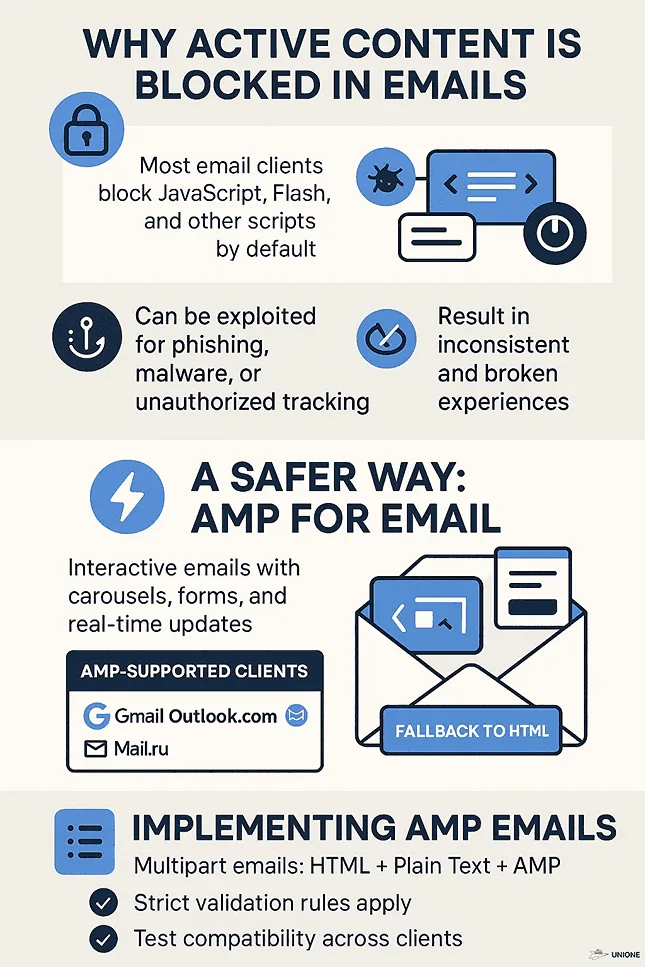
Why Active Content is Risky and Generally Prohibited
Active content needs to execute scripts or code directly within the email client, which poses several risks:
- Security Threats: Malicious scripts embedded in emails can be used to steal sensitive information, launch phishing attacks, or spread malware. This is the primary reason most email clients block any active content by default.
- Inconsistent Support: Most email clients disable or strip active content, resulting in broken functionality or a degraded user experience if relied upon.
- Privacy Concerns: Active content can track user behaviour beyond simple open or click metrics, sometimes without user consent.
Due to these risks, industry practices and major email clients prohibit or severely restrict active content. Developers are encouraged to rely on static content or safe alternatives for interactivity.
Active Content and AMP for Email
AMP (Accelerated Mobile Pages) for Email is a framework developed by Google that allows senders to create dynamic, interactive email experiences while maintaining strict security controls.
- Secure Execution Environment: AMP emails sandbox interactive components, limiting what code can do and preventing malicious behavior.
- Supported Features: AMP supports components such as carousels, accordions, forms, and live data updates – enabling emails that feel like mini web apps.
- Compatibility: AMP emails are currently supported by a limited set of email clients, including Gmail, Outlook.com, and Mail.ru. Clients without AMP support gracefully fall back to traditional HTML versions.
- Implementation Requirements: To send AMP emails, developers must create multipart emails including HTML, plain text, and AMP versions, and comply with specific validation rules.
While AMP for Email expands the possibilities for active content, it is still important to consider your audience’s email client preferences and test thoroughly.
How to Test HTML Emails Before Sending
Testing HTML emails before sending is essential to ensure your message displays correctly and functions well across the many email clients, devices, and platforms your recipients use. Since email clients have varying support for HTML and CSS, even small differences in rendering can affect your email’s appearance and user experience.
Why Testing Matters:
- Cross-client rendering: Outlook, Gmail, Apple Mail, and others all handle HTML/CSS differently.
- Mobile optimization: Over half of emails are opened on mobile devices with varying screen sizes.
- Spam filtering: Poorly coded or suspicious emails may get flagged or blocked.
- Accessibility: Ensuring images have alt text and proper semantic structure improves usability for screen readers.
To test HTML emails before sending, developers often use special tools like the ones offered by Litmus and Mailtrap that show how the emails will look on different devices and email clients. These tools save time and catch problems that might not appear in a regular browser preview or single test.
Besides visibility testing, you should also test your setup to verify the emails are sent without hiccups. UniOne offers a free email testing tool that helps you check your email connections and fix delivery problems. It’s designed to quickly identify issues that might prevent your emails from reaching recipients’ inboxes.
Best HTML email builders
Creating professional HTML emails can be challenging. Fortunately, several excellent HTML email builders have emerged to streamline this process, offering intuitive drag-and-drop interfaces, pre-built templates, and robust design capabilities. Here are some of them:
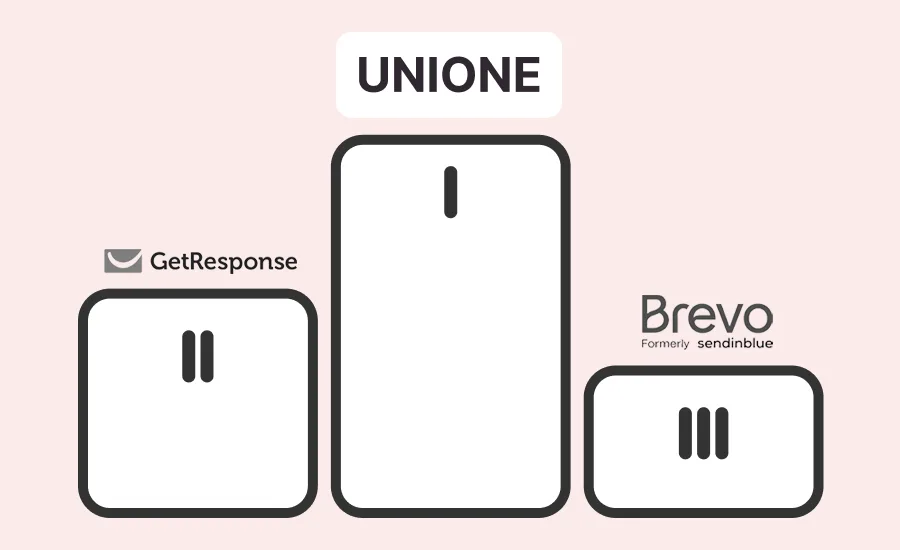
- UniOne. For businesses requiring more technical control, integrating with a reliable SMTP service becomes crucial for ensuring optimal email delivery. Businesses looking to build custom email solutions often benefit from leveraging an email api service for developers that provides flexible integration options and comprehensive documentation. While such services often do not offer their own email builders, UniOne does. Complemented with over 300 ready-made templates, this AI-powered tool allows you to create professional email up to 3 times faster than usual builders.
- Stripo. It is a dedicated HTML email builder that focuses exclusively on email design. The platform features a drag-and-drop editor with advanced customization options, including interactive elements like carousels, timers, and AMP components.
- Mailchimp. It remains one of the most popular choices, providing a comprehensive email builder with extensive template library and advanced segmentation features.
- GetResponse. This service provides not only email building capabilities but also landing page creation and webinar hosting, making it an all-in-one marketing solution.
When choosing an HTML email builder, look at template options, how much you can customize designs, deliverability rates, pricing, and whether it integrates with your current marketing tools.
Templates and resources to accelerate development
Pre-built templates and ready-made resources can speed up development since you don’t have to start from scratch. Some key resources to consider include:
- Transactional Email Templates: These templates help developers quickly implement reliable and professional email communications. For example, the Transactional Email Templates offer customizable, tested designs compatible across email clients, saving time on coding and debugging.
- UI Component Libraries: Collections of reusable interface elements (buttons, forms, modals) that ensure design consistency and reduce repetitive work.
- Code Snippets and Boilerplates: Pre-written code blocks and project starters that provide a solid foundation for common features and architecture patterns.
- Design Systems: Comprehensive guidelines and assets that unify the look and feel of an application, accelerating collaboration between designers and developers.
Related Services
UniOne offers a suite of products designed to support and streamline your email and communication needs:
- SMTP Server: A scalable and secure SMTP service that ensures smooth email sending for your applications.
- API Integration: Easy-to-use APIs for seamless integration of UniOne services into your existing workflows and applications.
- Transactional Email: Reliable and fast delivery of automated emails such as order confirmations, password resets, and notifications.
- Email Marketing: Tools for creating, sending, and tracking bulk marketing campaigns with customizable templates and detailed analytics.
Learn more about UniOne’s products for HTML email development, testing, and sending.
Conclusion
Getting good at HTML emails means paying attention to three things: making sure they work everywhere, designing them to look good on phones and desktops, and writing clean code. You’ll save yourself headaches by avoiding mistakes like using CSS that doesn’t work in all email apps or forgetting about people who use screen readers.
You don’t have to build everything from scratch, though. Starting with proven email templates can speed up your work and help you avoid common problems. Many email services also offer pre-tested templates and coding tools that handle the tricky compatibility stuff for you.
When you combine strong technical skills with the right templates and services, you can build emails that actually work – ones that look professional and get people to take action without all the usual headaches.
FAQ
What is HTML email?
HTML email is an email format that uses HyperText Markup Language (HTML). Leveraging HTML emails helps structure and style the content of your message, creating a visually rich and branded experience.
Why should I choose HTML email over plain text?
Unlike plain text emails, HTML emails allow you to create engaging, visually appealing and branded emails. Although they require more effort, HTML emails will definitely enhance user experience and drive your business growth.
Should I code HTML emails from scratch or use templates?
For most use cases, starting with proven templates is recommended. Templates provide tested cross-client compatibility, responsive design, and save significant development time. Code from scratch only when you need highly custom designs or have specific requirements that templates cannot meet. Templates reduce the risk of rendering issues across different email clients.
Why is coding HTML emails different from regular web development?
HTML emails must show consistently across the numerous email clients, each with varying support for CSS and HTML standards. This requires simpler, inline styles and table-based layouts rather than modern web techniques.


![10 Intuitive Email Builders To Try [Our 2026 Top]](https://unione.io/generated/wp-media/3c070570dad3c285.webp)


