
 27 october 2026, 16:13
Key takeaways
• Merchant emails: Your app writes to the store owner at install, before a trial ends, near a usage cap, and after an uninstall or a data deletion request.
• Shopper emails: Your app needs Shopify’s approval to send subscription, pre-order, and review emails to customer addresses from the store. Back-in-stock alerts go to the address a shopper entered in your app.
• No duplicates: Shopify already sends order, shipping, and refund notices and confirms trial extensions to merchants. Your app skips them, except a Shopify notification the merchant agrees to switch off (see the FAQ).
• Delivery: Shopify may deliver the same webhook several times, and deliveries may arrive out of order. Make the handler idempotent or skip repeated X-Shopify-Webhook-Id values. When two subscriptions share a topic, send one email per X-Shopify-Event-Id. Check X-Shopify-Triggered-At before sending a status email.
Shopify itself emails a store’s customers about their orders, shipments, and accounts, and most of these notifications are sent automatically and can’t be deactivated. A merchant can skip several of them, such as the refund or shipping email for a single order, but not the order confirmation. If your app also sends its own order confirmation, the customer gets two emails about the same order.
Everything else a Shopify app sends depends on what the app itself knows: which setup steps are done, what the merchant’s plan includes, and whether the store’s data is still on your servers. Your app emails shoppers only where it adds something Shopify doesn’t cover, such as a subscription or a pre-order.
What Counts as a Transactional Email From a Shopify App?
A Shopify app’s email is transactional when it reports a specific event in the merchant’s account, the store, or the app’s billing. Typical events are an install, a plan change, a trial nearing its end, a failed sync, an uninstall, and a purchase a shopper made through the app. Merchants and shoppers hear from different senders. Merchants get email from your team, sent to the shop owner’s address. Shoppers get email that carries the store’s name.
Upgrade offers, feature announcements, and newsletters to merchants are marketing emails, even when they come from the same app that sent the install confirmation. A review request that carries a discount code turns into a marketing email too. Shopify’s protected customer data rules ask apps to respect customers’ consent decisions where applicable.
Which Emails Does Shopify Already Send for You?
Order confirmations, shipping updates, refund notices, and customer account emails come from Shopify itself.
Shopify also bills the merchant for your app. Recurring app fees start when the merchant first approves the app, or when the free trial ends if the plan has one. They repeat at the start of each billing period and are added to the merchant’s Shopify bill. Under Shopify App Store rules, every app charge goes through Shopify App Pricing or the Billing API.
When you extend a merchant’s free trial in the Partner Dashboard, Shopify emails the merchant on your behalf to confirm the change. Your app has nothing to add here.
Which Transactional Emails Does a Shopify App Need?
A Shopify app needs up to thirteen emails: up to nine to the merchant and up to four to the store’s shoppers, depending on how the app charges merchants and which features it has. We based the list on Shopify’s App Store requirements, its billing and webhook documentation, and its privacy compliance rules for apps.
| Trigger · recipient | What to include | When to send | |
| Install confirmation | App installed and access approved · shop owner | Steps done, step left, link into the app, support contact | Right after install |
| Setup reminder | Required setup step not done · shop owner | Missing step, where to do it, what isn’t working yet | Until setup is done; stop on uninstall |
| Store event alert | Sync failure, flagged order, low stock, finished import · owner or staff by role | What happened, which store, what to do, record link | After the event is processed, once per event |
| Plan confirmation | Plan approved or changed · shop owner | Plan, price, first charge date, link to plans | After approval |
| Trial ending reminder | Trial end date approaching · shop owner | End date, plan and price after trial, how to change or cancel | A few days before the trial ends |
| Usage cap warning | Usage charges near the capped amount · shop owner | Spend so far, cap, what happens at the cap, where to raise it | At the warning threshold |
| Subscription status | Subscription frozen; on the Billing API also declined or expired · shop owner | What changed, where the balance is paid, what to do | On the status change |
| Uninstall confirmation | App removed · shop owner | What stopped, billing outcome, theme code to remove, reinstall link | Right after uninstall |
| Data request or deletion notice | Mandatory compliance webhook · shop owner | The requested data through a secure link, or what was deleted and what is kept | When the request is processed |
| Subscription email to shoppers | Shopper buys a subscription · shopper | Portal link, next charge, price, cancel link | After purchase |
| Pre-order date change | Shipping date moved later · shopper | New date, product, how to cancel | When the date changes |
| Review request | Order delivered · shopper | Store brand, product, link to the review form | After delivery |
| Back-in-stock alert | Product restocked · shopper who signed up | Store brand, product, link to the product | Once, when the product is back |
How Should Your App Email a Merchant After Install?
Every install, setup, and alert email should link to the exact screen inside your app where the merchant’s next step is. Install and setup emails go to the owner address Shopify keeps in Shop.email.
Install Confirmation Email
An install confirmation is a short email you send right after a merchant approves your app’s access. It lists what the app has already done in their store and what is left to set up.
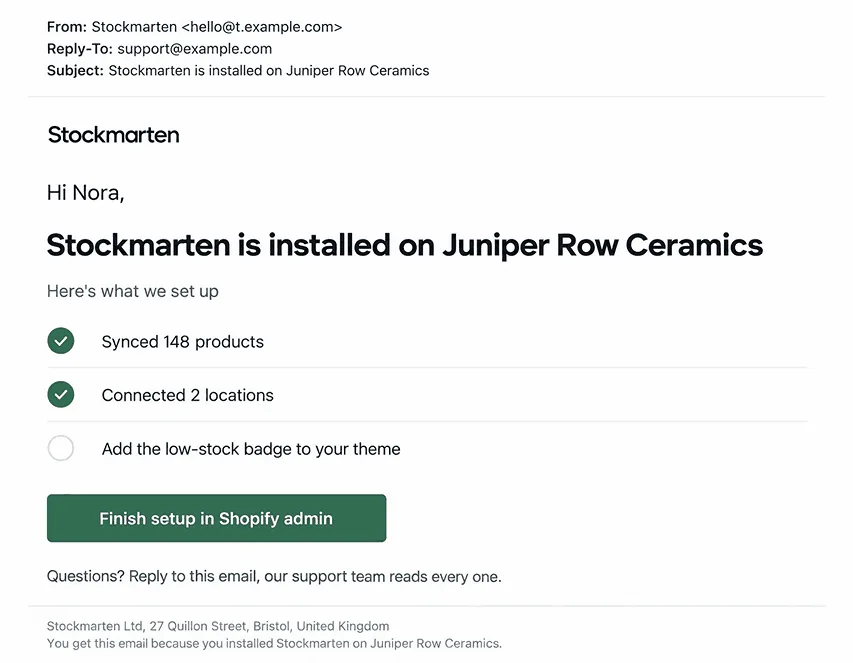
Be sure to include:
• The store name
• The steps already done, with check marks
• The one step left, with a button that opens it inside your app
• A way to reach your support team
Don’t confuse Shop.email with contactEmail, the store’s public address that customers use to reach the shop owner. Save the owner’s address at install, because after an uninstall your app loses API access and can’t look it up.
Setup Reminder Email
You send a setup reminder when the merchant still hasn’t done the one step your app needs, such as adding your theme app block to the storefront. Name the missing step and which features stay disabled until it’s done. Shopify’s App Store requirements ask apps that use theme app extensions for detailed setup instructions for their app embeds and app blocks. Link those instructions from the reminder. Stop every reminder as soon as the app/uninstalled webhook arrives, or the merchant keeps getting setup emails for an app they’ve removed.
Store Event Alert
When a product sync fails, an order gets flagged, stock runs low, or an import finishes, the person who can act on it should get one email.
Route each alert by role. Billing problems go to the owner, while import results go to the staff member who started the import. Your app gets that person’s address from an online access token. The token’s associated_user identifies the staff member who opened the app and includes their email, which you can trust only when email_verified is true. Without an online token or a verified address, send the alert to the owner. An owner or an agency may run several stores. Name the store in the subject line and keep each email to one event. Put the error text or the import totals in the email itself to show the reader what to fix before opening the app.
Which Billing Emails Should Your App Send?
Billing needs up to four emails: a new plan, a trial about to end, a usage cap on the Billing API, and a subscription status change.
Plan Confirmation Email
Once a merchant approves a plan or switches to another, confirm the plan name, the price, the date of the first charge, and what the new plan includes.
An email that looks like an invoice, with the developer’s bank details at the bottom, reads as a second bill. Leave payment details out of this email. App Store requirement 1.2.3 asks apps to let merchants upgrade and downgrade without contacting support or reinstalling the app. Link to the plan page inside your app, where the merchant can switch plans on their own.
Trial Ending Reminder
A few days before a free trial ends, tell the merchant the date, the plan that starts, and its price.
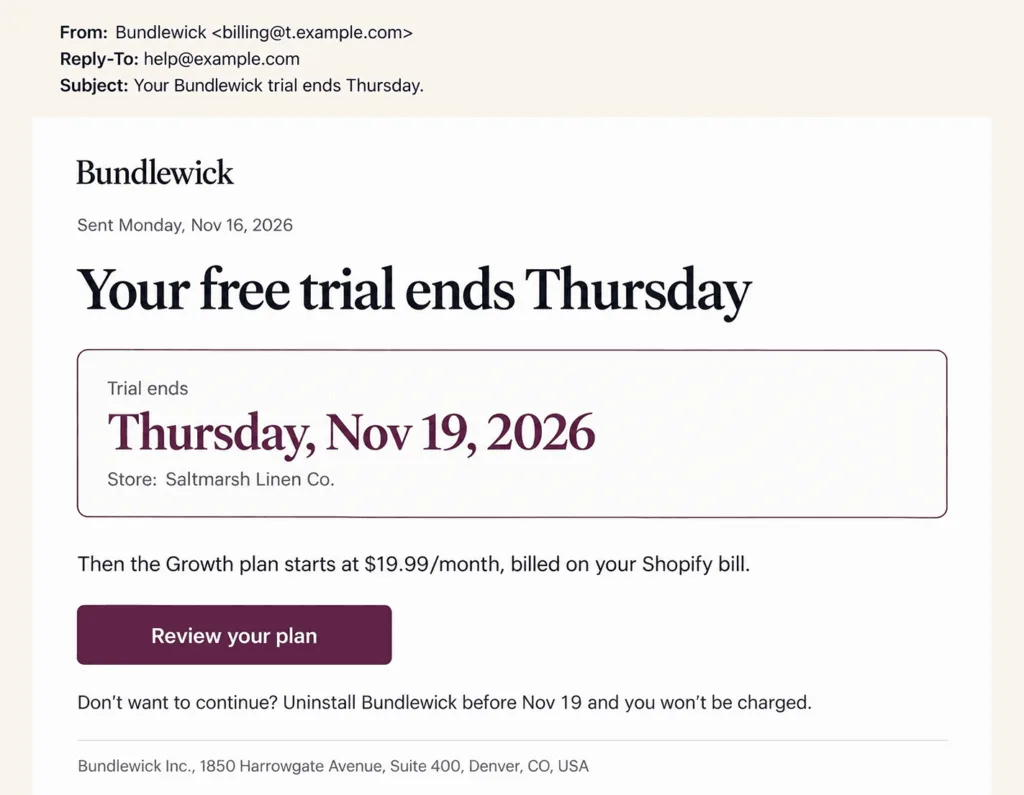
Each reminder should also include:
• The weekday next to the date
• One button to change the plan
• How to cancel, by uninstalling or by switching to a free plan if you have one
On Shopify App Pricing, take the date from the Partner API: while a subscription is in its trial, the activeSubscription query returns trialEndsAt, the end of the trial. Don’t calculate the end date as the install date plus the trial length, because trial days a merchant already used carry over to a reinstall (see the FAQ). On the Billing API, your app can learn the same date through webhooks or API polling.
Usage Cap Warning
Usage charges stop at the capped amount the merchant approved. Warn the merchant while there’s still room to raise the cap, and put both the amount used and the cap in the email.
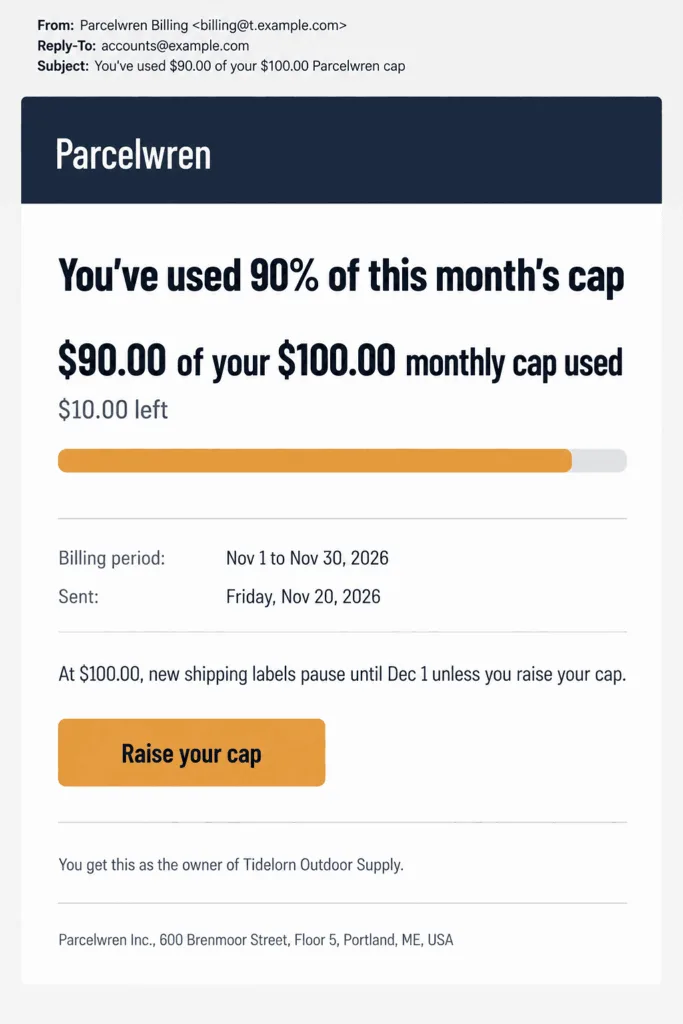
On the Billing API, the APP_SUBSCRIPTIONS_APPROACHING_CAPPED_AMOUNT webhook arrives when usage reaches 90% of the capped amount. Your app can send the warning at that moment. Only apps billed through the Billing API need this email, because Shopify App Pricing doesn’t support capped amounts.
Put the dollar amounts in the subject line too. With a bare “You’re close to your limit”, the merchant has to open the email to learn how close.
Subscription Status Email
A merchant’s subscription to your app can freeze, and on the Billing API it can also be declined or expire. For each of these statuses, send an email that says what changed and what, if anything, the merchant needs to do.
Frozen means the subscription is on hold because of non-payment, and it re-activates after payments resume. Avoid writing “your payment to us failed”: the unpaid balance sits on the merchant’s Shopify bill, and that’s where the merchant settles it. A declined status means the merchant turned the charge down, and an expired one means nobody approved the plan request within two days of its creation.
How your app learns about the change depends on how it bills. On the Billing API, the app_subscriptions/update webhook arrives when a subscription’s status changes. Shopify App Pricing doesn’t use webhooks for subscription changes. For a freeze, Shopify points apps to the Partner API: its events query returns SUBSCRIPTION_FROZEN and SUBSCRIPTION_UNFROZEN events, and activeSubscription returns the merchant’s current subscription. Poll both queries regularly and send the email when the state changes.
What Should Go Out When a Merchant Uninstalls Your App?
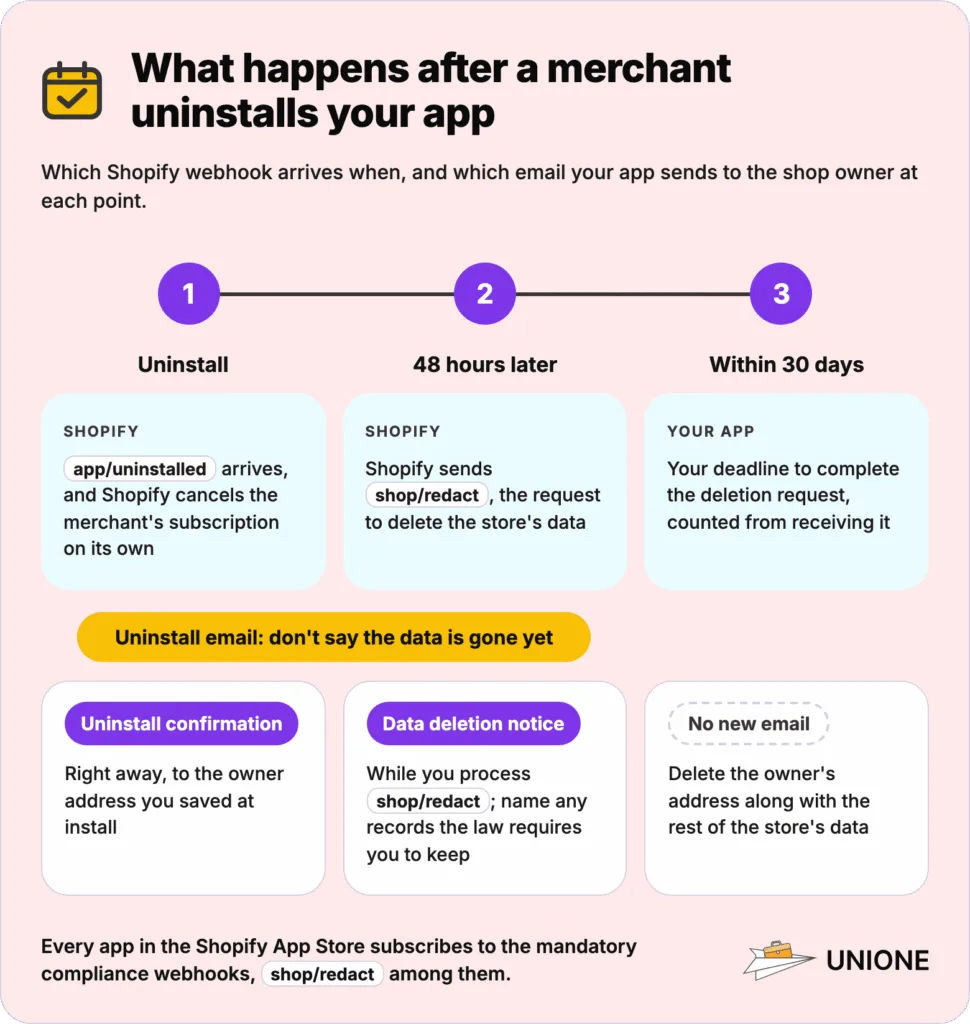
Shopify cancels the merchant’s subscription on its own, and your app sends the shop owner two emails: a confirmation right away and a data deletion notice when it processes shop/redact.
Uninstall Confirmation Email
The uninstall confirmation goes to the owner address you saved at install, right after Shopify delivers the app/uninstalled webhook.
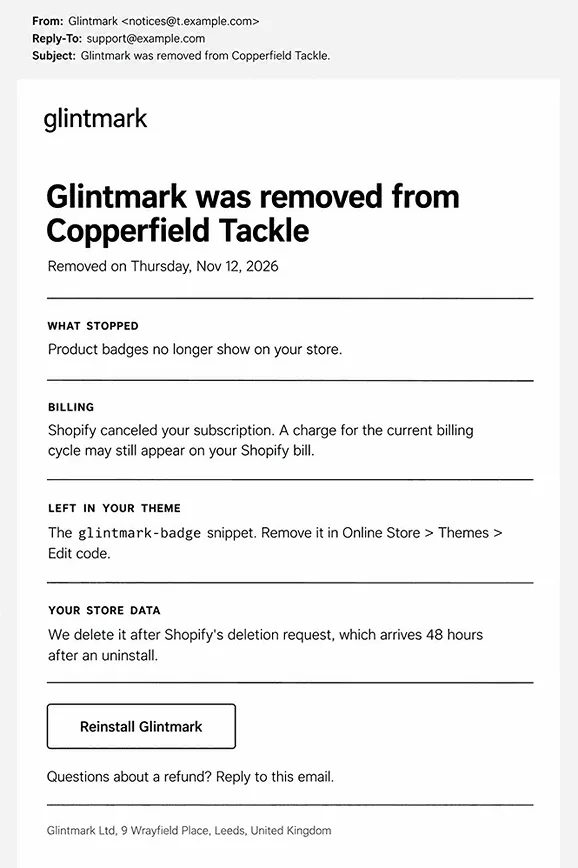
Cover these points:
• What your app stopped doing in the store
• That a charge for the current billing cycle may still appear on the merchant’s Shopify bill
• Any code left in the theme, and how to remove it
• How to reinstall
• How to ask you for a credit or a refund
Shopify warns merchants that some apps add code to the online store theme that isn’t removed automatically. Give your snippet’s name and the place to delete it. Leave out any claim that the store’s data is already gone, since Shopify’s shop/redact deletion request reaches your app later.
Data Request and Deletion Email
A data request or deletion email tells the store owner what your app did with a data report or deletion Shopify requested. Shopify sends these requests through three mandatory compliance webhooks: customers/data_request, customers/redact, and shop/redact. Every app in the Shopify App Store subscribes to all three, but only apps with access to customer or order data receive the two customer webhooks.
Shopify sends shop/redact 48 hours after a store owner uninstalls your app, and you have 30 days from receiving a request to complete it. For a customer with no orders in the past six months, Shopify sends customers/redact 10 days after the store owner submits the customer’s deletion request.
Send the shop/redact notice while you process the request, then delete the owner’s address along with the rest of the store’s data. If the law requires you to keep some records, Shopify says not to delete them; name those records in the email. A customers/data_request comes from a shopper, but Shopify asks your app to provide the stored data to the store owner directly. Send the owner a secure download link rather than personal data in the email body.
Which Emails Can Your App Send to a Store’s Shoppers?
A Shopify app can send shoppers subscription emails, pre-order date change notices, and review requests once Shopify approves its access to customers’ email addresses. The app takes these addresses from orders and customer records in the store. Email addresses there are protected customer data: a public app requests access in the Partner Dashboard, states why it needs the data, and waits for review. Back-in-stock alerts use the address a shopper types into your app’s own sign-up form. Shopify’s App Store requirements still ask apps to send collected data on the online store back to the merchant’s Shopify admin. Shopify’s protected customer data rules also ask apps to process only the minimum personal data they need.
Subscription Email to Shoppers
Each shopper who buys a subscription should get a post-purchase email with a link to the portal where they can manage or cancel it.
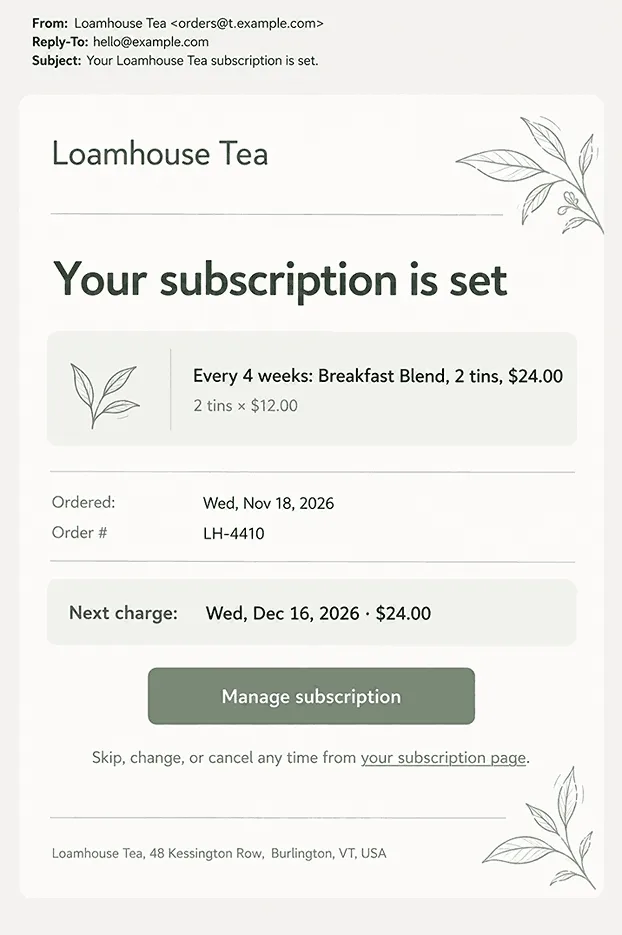
Shopify’s App Store requirements ask subscription apps to link shoppers to the customer portal in two places: the order status page and a post-purchase email. They also give a cancel link in an email as an example of how cancellation can work. The same requirements ask apps to show shoppers the price and when they’ll be charged, and Shopify recommends doing that on the storefront. Repeat the next charge date and amount at the top of the email.
Pre-Order Date Change Email
When a merchant pushes a pre-order’s shipping date back, every shopper who placed that pre-order should get an email from the store with the new date.
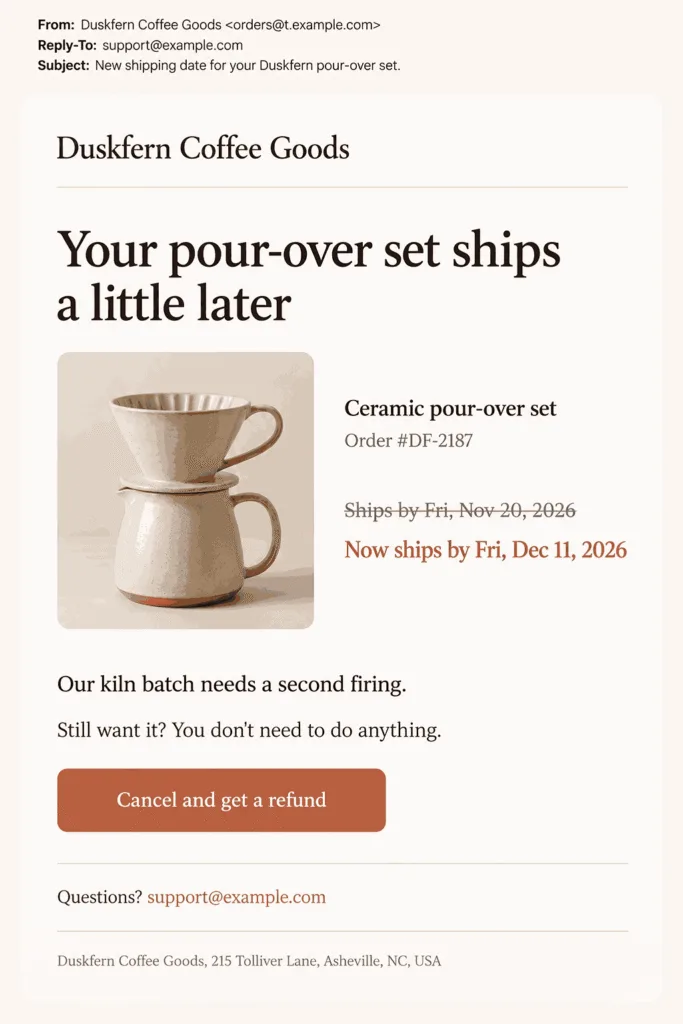
Your app is responsible for this one. Shopify’s requirement on pre-order delays asks pre-order apps to email a merchant’s customers whenever the merchant moves the shipment date to a later one. Along with the new date, include:
• The product with its image
• The old date next to the new one
• The reason in one line
• How to get a refund after canceling
• The store’s contact details
Review Request and Back-in-Stock Email
A review request is about one order and a back-in-stock email about one product, and each carries a single action.
Review request emails should name the product the shopper actually received and link straight to the review form. Before you add a discount or other products, check the customer’s defaultEmailAddress.marketingState, which shows whether they’ve subscribed to email marketing, and marketingUpdatedAt, when that consent last changed. Add them only when marketingState is SUBSCRIBED, and send everyone else the plain review request. Send a back-in-stock email once for each sign-up, when the product is back.
How Do Your App’s Emails Reach the Inbox?
Authenticate every sending domain, send one email per webhook event, and keep merchant and shopper mail on separate streams.
Send From an Authenticated Domain
Merchant emails. Send merchant emails from a subdomain of your app’s domain, with its own SPF and DKIM records. That subdomain needs no DMARC record of its own, because it inherits the DMARC policy of your app’s main domain. Make sure your app’s main domain publishes one.
Shopper emails. Your app sends its emails to shoppers through your own email service. Before your app puts the store’s address in the From line, the merchant has to add your service’s SPF and DKIM records to the store’s domain. Gmail and Yahoo require SPF or DKIM authentication from all senders, and both require SPF, DKIM, and DMARC from bulk senders. The store’s domain should keep a single DMARC record, shared by your app’s emails and Shopify’s. Until the merchant adds your records, keep the From address on your app’s domain, with the store’s name in the From name and the store’s contactEmail in Reply-To.
Emails that Shopify itself sends for the store need different records. Shopify rewrites the address on those emails to one on shopifyemail.com when the store address is unauthenticated. To avoid the rewrite, the merchant adds Shopify’s CNAME records to the store’s domain and checks that it has a DMARC record. Shopify warns that adkim=s or aspf=s in that record can stop these emails from authenticating. The CNAME records cover only Shopify’s own emails and don’t authenticate the ones your app sends.
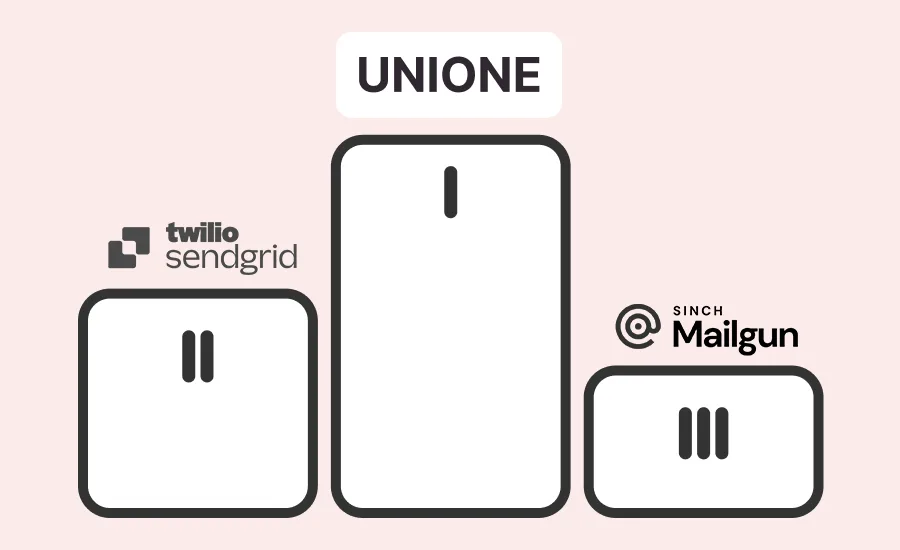
In UniOne, for example, you publish SPF and DKIM records for each sending domain and keep the domain’s existing DMARC record. The service’s real-time reports track bounces, so you can see when a customer gets a bounced email.
Send One Email per Webhook Event
A Shopify webhook can arrive more than once and out of order, so an email sent straight from the handler can reach the merchant twice.
Your app has five seconds to answer a webhook, and failed deliveries are retried eight times over the next four hours. Answer first and put the email in a queue. Shopify advises idempotent processing, so that a repeated delivery doesn’t produce a second email. Where that isn’t possible, save the X-Shopify-Webhook-Id header and skip any delivery whose ID you’ve already saved. That ID only catches retries of the same delivery. If your app has two subscriptions to the same topic, each delivery gets its own X-Shopify-Webhook-Id, but both share one X-Shopify-Event-Id. Shopify gives that ID to all deliveries from the same merchant action. When both subscriptions can trigger the same email, check the X-Shopify-Event-Id before sending, so one action produces one email. A merchant who gets the same alert twice may report it as spam, and Gmail warns that frequent spam reports lower a domain’s reputation.
Shopify also doesn’t guarantee delivery order and recommends sorting events by the X-Shopify-Triggered-At header or the payload’s updated_at. Status emails depend on this. Say a merchant’s subscription on the Billing API freezes and then re-activates. The app_subscriptions/update delivery about the freeze may arrive after the one about the re-activation. An app that emails on arrival then tells an active merchant that their subscription is on hold. Compare the delivery’s X-Shopify-Triggered-At with the latest one you’ve stored for that subscription, and skip the email when the delivery is older.
Keep Merchant and Shopper Emails Apart
Use one sending stream for merchant emails and another for shopper emails.
Google asks senders to keep promotions out of sales receipt messages and to use one From address per category of messages. Gmail’s one-click unsubscribe rule excludes transactional messages. Google’s examples are password resets, reservation confirmations, and form submission confirmations, and an install confirmation or a pre-order date change is the same kind of email. Marketing and subscribed emails, such as newsletters and upgrade offers to merchants, need one-click unsubscribe once your daily sends to Gmail go past 5,000 messages.
Who Can Build Your Shopify App?
When your team is short on Shopify engineers, a development studio can build the app with you. It can also build the systems behind the app’s transactional emails, such as the webhook handlers. Check whether a studio has shipped an App Store app before, as both studios below have.
| Studio | Based in | App Store experience |
| KLoc Technologies | Bengaluru, India | Two apps of its own in the App Store; custom apps for merchants |
| Invental | Montevideo, Uruguay | A client app taken through App Store review |
KLoc Technologies
KLoc Technologies is a Bengaluru team that sells custom Shopify apps and integrations as a separate service. KLoc is also the developer behind Marketwise Discount Ninja and Marketwise Loyalty Ninja, both listed in the App Store. It builds on Ruby on Rails, the MERN stack, or Python, and connects a store to any outside service that has a REST API. Each project starts with a review of the client’s setup before KLoc proposes a solution. Its custom apps for individual merchants start at $1,000.
Invental
Invental is a development studio in Montevideo, Uruguay, that builds custom Shopify apps, checkout UI extensions, and themes alongside websites and mobile apps. One published case is a product-recommendation quiz app for a direct-to-consumer brand. Invental built the storefront quiz, the merchant admin, and the backend, and wired the HMAC-verified webhooks and the mandatory data webhooks. It then took the app through Shopify App Store review to approval. Work begins with a discovery week and runs in two-week sprints. Invental has no public price list.
Conclusion
An App Store app already subscribes to Shopify’s mandatory compliance webhooks, and the app/uninstalled webhook tells it when a merchant leaves. The uninstall and data emails are sent from those handlers, so add them first. Add the install confirmation and the trial ending reminder next: a merchant needs one to finish setup and the other to know when the paid plan starts.
FAQ
Does Reinstalling a Shopify App Restart the Free Trial?
Not on Shopify App Pricing. It counts trial days over a 180-day window. For example, a merchant who used 12 days of a 15-day trial and reinstalls 90 days later has 3 days left. Your trial ending email should use trialEndsAt for the date.
Can a Merchant Turn Off Shopify’s Shipping Emails If an App Sends Them?
Yes, for six of Shopify’s notifications. A merchant can skip the Order canceled, Order refund, Shipping confirmation, and Shipping update notifications one order at a time. The merchant does this by unchecking the customer notification while canceling, refunding, fulfilling, or editing tracking. Out for delivery and Delivered can be turned off in the store’s notification settings. The order confirmation isn’t among the notifications a merchant can switch off, though on the Shopify Plus plan the store owner can ask Shopify Support to turn off specific notifications. If your app replaces one of these, agree with the merchant how the Shopify version gets switched off.
Who Refunds a Merchant After They Uninstall a Paid App?
The app developer does. Uninstalling cancels future recurring charges, but the merchant may still be billed for the current cycle, and Shopify says refunds for third-party app charges are managed by the developer. You can credit an unpaid charge or refund a paid one. Name the address that handles refund requests in your uninstall email.
![5 Best Analytics Tools For Boosting E-commerce Strategy in Shopify [2026]](https://unione.io/generated/wp-media/0eaac4e1b171806a.webp)