
 19 june 2026, 14:24
The Simple Mail Transfer Protocol (SMTP) is akin to the operational standards of the postal service system. It is a set of established rules allowing you to send and receive emails reliably. Just like you would expect any letter you drop in your regular mailbox to reach the address printed on the envelope, SMTP ensures your message reaches the recipient’s email address.
For this to happen, a flurry of activities begins the moment you click “send mail” on your device.
In this article, we discuss it all: what SMTP is, how it works, its history, and many other important aspects of the topic.
Come discover how your emails are sent!
What is SMTP (Simple Mail Transfer Protocol)?
First, what is SMTP? Imagine you’re sending a letter to a friend.
Obviously, you could easily pass the same message via a phone call or a social media channel. But, just walk with me for a second.
For that letter to reach your friend, you would have to write it first, secure it in an envelope, and write your friend’s address on that envelope. You would also have to put a stamp on it before dropping it in a mailbox.
Next, the postal worker comes by your house, picks it up, and takes it to the post office.
Normally, what goes on there isn’t your concern, but here’s a clue.
Postal workers sort your letter alongside countless others based on the delivery address and transport it to a processing plant, where they are dispatched to different regions before being taken to delivery offices in those regions. Another postal worker then picks them up and dispatches them to the addressed homes or businesses, one of which is your friend’s.
There are other “letter stuff” happening between all these stages, and you can find out how a letter travels if you’re into all that.
Anyway, in a few days, your friend is giggling (or frowning) while reading your letter.
But let’s assume for a moment that you wrote the wrong address on that letter or failed to put a stamp on it. Or even worse, the post workers missed one of the steps in their process.
Do you think your friend would still get your letter?
Only strict adherence to standard processing rules ensures letters and other packages are sent and delivered reliably.
Computer networks have their own version of that set of rules, called SMTP.
The SMTP meaning is straightforward. It is a universal set of codes and standards that facilitates the sending and receiving of emails between different computer networks and servers over the Internet.
You can think of it as the unique language spoken by mail carriers who empty the mailbox in front of your house and deliver it to your friend’s address.
History of SMTP
In 1965, two MIT engineers, Noel Morris and Tom Van Vleck, developed a system that allowed users to leave messages for each other on the same shared computer.
A few years later, Ray Tomlinson connected that idea to ARPANET, the government research network that eventually became the Internet. This made it possible to send messages between different computers on the same network and marked the beginning of email communication as we know it.
As email grew, the need for a universal standard became obvious. In August 1982, Jonathan Postel published RFC 821, which formally defined SMTP as the protocol for transferring messages between systems.
David Crocker’s RFC 822 followed shortly after, defining the format of email messages themselves. Together, these two documents laid the foundation for modern email.
SMTP has been extended and refined since then, most notably with the introduction of ESMTP (Extended SMTP) in 1995. This opened the door for encryption, authentication, and other capabilities the original spec never anticipated.
How does SMTP work?
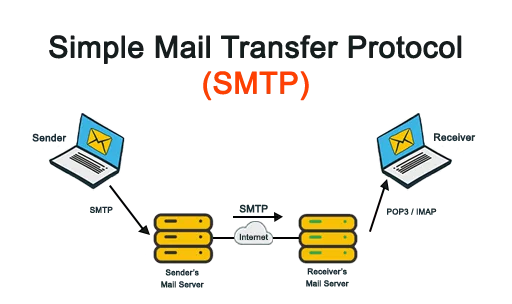
So, what does SMTP do in practical terms? SMTP operates through several key steps when sending an email. Before we get into that, here’s some terminology you need to be familiar with:
- Mail client: The mail client is a program that a person sending or receiving an email interacts with directly. Thunderbird, Gmail app and MS Outlook are perfect examples of that. In more technical terms, this type of software is also called a Mail User Agent (MUA).
- SMTP server: This is a program for transferring emails from one computer to another. Quite often, a computer is solely allocated for this purpose, so the term may also refer to the entire system, software and hardware combined. Mail Transfer Agent (MTA) is yet another term for this type of software, though it reflects only part of its functionality. Popular examples include Postfix, Exim, and Microsoft Exchange.
The moment you click “send”, every email goes through the following steps:
Step 1. Connection establishment
The mail client initiates a connection with the SMTP server. To let your email client know which SMTP server to connect to, you must provide its domain name or IP address during the initial setup. This connection is usually done through port 25 (the default one), 587, or 465 (for secure connections). Domain names and IP addresses are used to locate a particular computer on the internet, while port numbers are a way to tell the remote computer which program should process the incoming data.
This step is like walking up to your mailbox: you need to know where exactly it’s located.
Step 2. Email submission
At this stage, your mail client transfers your email to the SMTP server using a series of commands.
The mail data transfer process involves the following commands:
- HELO/EHLO Command: This represents a standard “hello” as in a normal human conversation. The mail client uses it to introduce itself to the SMTP server.
- MAIL FROM Command: The MAIL FROM command is used to identify the sender’s email address to the server.
- RCPT TO Command: This command specifies the recipient’s email address. If the sender intends to send the email to multiple recipients, multiple RCPT TO commands are used to specify the individual email addresses.
- DATA Command: The sender’s mail client uses this command to request permission to transfer email content from the server. The server responds by sending a 354 code, prompting the mail client to transfer the email content, including subject line, other headers, and body content. Once they are all sent, this command ends with a single period on a single line, marking the termination of the data transfer process.
It’s like dropping that letter in your mailbox for the post carrier to collect it. But not so easy, huh?
Step 3. Processing and routing
Now, it’s like your physical letter has arrived at the processing plant, where postal workers sort it and prepare it for dispatch to the post office closest to your friend. They verify both yours and your friend’s address along with other important details.
Similarly, the SMTP server processes the email sent, verifies the sender and recipient addresses, and ensures the email content is not malformed.
Next, it initiates a series of steps to transfer it to the recipient’s mail server. Sometimes, a physical letter has to go through several post offices before reaching the one closest to your friend. The procedure for each one will be similar.
This step includes the following:
- Routing: Routing is the overall process of structuring the email’s course or path to the recipient’s server. It’s like the postal service planning which post offices the letter has to go through before reaching your friend.
A Mail Transfer Agent does this by checking if the recipient is on the same domain as the sender, just like checking if your friend is in the same area code as you. If that is the case, it sends the email directly into their mailbox, instead of another SMTP server. However, if the recipient’s address is on a different domain, it determines the recipient’s mail server via a DNS (Domain Name System) lookup.
- Relaying: After an appropriate route is mapped, the email can be sent through the path. Relaying is the process of transferring the email from one server to another before it reaches the recipient.
If the email cannot be delivered directly to the recipient’s mail server, it is routed through intermediate MTAs that are closer to the recipient’s mail server. Each MTA receives the email, processes it, and forwards it to the next MTA in the route. All these processes utilize the same SMTP session scenario discussed above.
See? Just like the regular postal services!
Step 4. Final delivery
Once the email reaches the recipient’s server, it is stored in their mailbox (on the recipient’s SMTP server) like a post carrier dumping your letters inside the mailbox.
You still need to step out of the house to retrieve them. Similarly, the recipient’s email client retrieves the email from the server using protocols like POP3 or IMAP, or via webmail interface. This will happen when the addressee has the time to check for new mail.
SMTP Commands Explained
SMTP communication works through a defined set of commands that the mail client sends to the server. Each command triggers a specific action or response. Here’s a breakdown of the most important ones:
| Command | Meaning | What It Does |
|---|---|---|
| HELO | Hello | Introduces the client to the SMTP server. Used in basic SMTP connections. |
| EHLO | Extended Hello | Same as HELO but used for ESMTP connections. The server responds with a list of supported extensions. |
| MAIL FROM | Mail From | Specifies the sender’s email address and starts a new mail transaction. |
| RCPT TO | Recipient To | Specifies the recipient’s email address. Repeated for each recipient in a multi-recipient email. |
| DATA | Data | Signals that the client is about to send the email body. The server responds with a 354 code, and the client sends the message content, ending with a single period on its own line. |
| QUIT | Quit | Ends the SMTP session and closes the connection. |
| RSET | Reset | Aborts the current mail transaction without closing the connection, resetting the session to its initial state. |
| VRFY | Verify | Asks the server to verify that a given email address or username is valid. |
| NOOP | No Operation | Does nothing except prompt a response from the server. Used to keep the connection alive. |
| AUTH | Authentication | Initiates the authentication process, allowing the client to log in with a username and password. |
| STARTTLS | Start TLS | Upgrades an initially established plain-text connection to an encrypted TLS connection. |
SMTP Response Codes
Every command the mail client sends gets a numerical response from the server. These three-digit codes tell you exactly what happened, making them essential for troubleshooting delivery issues.
The first digit indicates the general category:
- 2xx = Success
- 3xx = Further action required
- 4xx = Temporary failure (try again later)
- 5xx = Permanent failure (do not retry)
Here are the most common SMTP response codes:
| Code | Meaning | What It Stands For |
|---|---|---|
| 211 | System status | Server status or help response. |
| 220 | Service ready | The server is ready to receive commands. |
| 221 | Service closing | The server is closing the connection after a QUIT command. |
| 250 | OK | The requested action was completed successfully. The most common success response. |
| 354 | Awaiting data | The server is ready to receive the email body after a DATA command. |
| 421 | Service unavailable | The server is temporarily unavailable. Try again later. |
| 450 | Mailbox unavailable | The recipient’s mailbox is temporarily unavailable. |
| 451 | Local error | The server encountered an error while processing the request. |
| 452 | Insufficient storage | The server doesn’t have enough storage to complete the request. |
| 500 | Syntax error | The server didn’t recognize the command. Caused by a typo or unsupported command. |
| 501 | Invalid parameters | The command was recognized, but the parameters were incorrect. |
| 503 | Bad sequence | Commands were sent in the wrong order. |
| 550 | Mailbox unavailable | The recipient’s address doesn’t exist, or access is denied. One of the most common bounce codes. |
| 551 | User not local | The recipient is not on this server. |
| 552 | Storage exceeded | The recipient’s mailbox is full. |
| 553 | Mailbox name invalid | The recipient’s address is malformed or doesn’t exist. |
| 554 | Transaction failed | The message was rejected outright, often due to spam filters or blacklisting. |
It’s worth noting that due to spammer abuse, 4xx and 5xx codes are known to be unreliable. For example, a generic 554 “Transaction failed” code may be returned instead of a more detailed 552 “Exceeded user quota”, and so on. The text part of the response, immediately following the code, may provide additional information, but these are not standardized at all. ESP teams usually make informed decisions based on their previous experiences with the particular SMTP server.
SMTP Ports Explained
A port is a numbered “entry point” on a network server that directs incoming traffic to the right application. SMTP uses specific ports depending on the type of connection and encryption being used.
| Port | Name | Encryption | Use Case |
|---|---|---|---|
| 25 | SMTP | None / STARTTLS | The original SMTP port, used for server-to-server email transfer. Most Internet Service Provider (ISPs) and hosting providers block it for end users to prevent spam abuse. |
| 465 | SMTPS | SSL/TLS | Originally designated for SMTP over SSL. Deprecated officially but still widely supported and used by many ESPs for secure client-to-server submission. |
| 587 | Submission | STARTTLS | The recommended port for email client-to-server submission. Requires authentication and supports STARTTLS encryption. This is the port most modern email clients and ESPs use. |
| 2525 | Alternate SMTP | STARTTLS | Not an official SMTP port, but commonly offered as a fallback when ports 25 and 587 are blocked. |
SMTP vs IMAP vs POP3: What’s the Difference?
Email protocols involved in the delivery process include SMTP, IMAP, and POP3. Many people wonder what exactly SMTP is used for, compared to IMAP and POP3.
SMTP: As covered earlier, SMTP handles outgoing mail. It transfers your message from your email client to your mail server, and then from one SMTP server to another until it reaches the recipient’s mail server. Its job ends there.
POP3 (Post Office Protocol Version 3) downloads emails from the server to the recipient’s device. By default, it deletes the messages from the server after downloading, though modern configurations allow keeping a copy. POP3 works well for single-device access and offline email management, but it doesn’t sync across devices.
IMAP (Internet Message Access Protocol) keeps emails stored on the server and lets the recipient access them from any device via an internet connection. Any changes sync across all devices in real time, making it the better option for anyone checking email on multiple devices.
Here’s a quick comparison:
| Feature | SMTP | IMAP | POP3 |
|---|---|---|---|
| Primary function | Sending emails | Accessing emails on the server | Downloading emails to the device |
| Direction | Outgoing | Incoming | Incoming |
| Stores email on server | No | Yes | No (by default) |
| Multi-device sync | N/A | Yes | No |
| Works offline | N/A | Limited | Yes |
| Best for | Sending all email types | Multi-device users | Single-device, offline access |
| Default port | 25, 587, 465 | 143, 993 (SSL) | 110, 995 (SSL) |
The simplest way to think about it: SMTP gets the email there, IMAP lets you read it from anywhere, and POP3 downloads it to one place.
Security Considerations
The original SMTP email protocol is solely focused on reliably transmitting messages across servers. Although it does this brilliantly, the protocol lacks inherent security features. The core SMTP specification has no encryption support, and all data transfers between servers are done in plain text.
It’s just like sending a postcard. Anyone who cares to know can read your messages.
As a result, unencrypted SMTP has the following vulnerabilities:
- Hijacking: Malicious actors can intercept and alter your emails.
- Phishing and Spamming: The absence of security measures allows any entity with ill intentions to send deceptive emails.
- Malware Attacks: These deceptive emails may contain harmful malware capable of infecting devices and servers.
Therefore, there is a need for a more secure version of SMTP.
Enter SMTPS, a method for securing SMTP using Transport Layer Security (TLS). Unlike SMTP, SMTPS encrypts all email content. The protocol uses TLS (an updated version of its predecessor, Secure Sockets Layer, or SSL) to secure the SMTP connections between the two parties during email transfer.
Here’s how TLS and SSL protocols keep your emails safe:
- Data Encryption: Your data is no longer transmitted as plain text. Instead, TLS converts them to a bunch of cryptic code that only the recipient’s server can interpret.
- Authentication: Before anyone can transfer the email, TLS confirms both identities to establish trust between the email servers.
- Integrity: TLS/SSL ensures that the email’s content is not altered during the transmission.
As a result of these security measures, SSL/TLS protocol maintains confidentiality by protecting your email content from “digital eavesdroppers”, guaranteeing the identity of communicating parties, and ensuring the integrity of messages.
Advantages and Disadvantages of SMTP
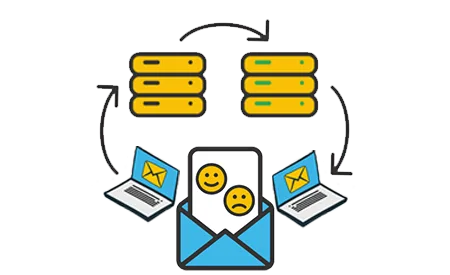
Advantages of SMTP
- Bulk email sending: SMTP is capable of sending a large number of emails, which is essential for businesses running large-scale email marketing campaigns.
- Wide area coverage: SMTP facilitates reliable, global email delivery across diverse networks, reaching recipients regardless of their location.
- Low email sending cost: Both individuals and businesses can send emails inexpensively using SMTP.
- Reliable delivery: The protocol provides a clear and dependable mechanism that ensures messages reach their intended recipients accurately and consistently.
- Interoperability: As a long-established standard, the SMTP protocol is universally supported by many types of software. This recognition ensures smooth communication regardless of the device, software, or implementation used.
Disadvantages of SMTP
- Security limitations: SMTP only establishes rules for sending and receiving emails between servers. Its initial design does not protect users against fake and malicious emails, making it vulnerable to attacks. To enhance security, SMTP is backed by additional methods such as encryption (TLS), authentication (SPF, DKIM, DMARC), and spam filtering.
- Firewall Blocking on Port 25: SMTP’s default port 25 has a history of being often abused by hackers. Therefore, providers have long started to block them at firewalls. This can hinder email delivery and cause connectivity issues. To avoid this, other ports, such as 587 and 465, are commonly used.
- Message length restrictions: SMTP servers sometimes reject emails that exceed a specific size, preventing the delivery of large messages. Breaking down attachments or using cloud links can help avoid this. For your own server, you can adjust your SMTP settings to allow files bigger than the limit specified in the server settings.
- Potential processing delays: SMTP involves several back-and-forth processes between servers, as mentioned above. This can delay email delivery and prevent the message from being sent altogether, if not configured the right way.
What Is an SMTP Server?
When you click send, your email client doesn’t deliver the message directly to the recipient. It hands it off to an SMTP server, which takes the responsibility for getting it to the right destination.
An SMTP server is the software that handles the protocol communication: accepting the message, verifying the sender and recipient, routing the email through DNS lookups, and relaying it toward its destination. The term, however, often refers to both the software and the computer it runs on.
An SMTP service is a managed platform built on top of SMTP server infrastructure. Providers like UniOne run a batch of servers for you and expose the connection details (host, port, credentials) so your application or email client can send through their infrastructure. On top of raw sending, they layer in features like deliverability monitoring, analytics, authentication setup, suppression list management, and support. An SMTP service lets you connect in minutes and benefit from infrastructure that has already been optimized for inbox placement and scale.
A self-hosted SMTP server gives you full control but puts the entire operational burden on your team. In practice, very few scenarios, apart from very large scale or highly classified communications, justify maintaining an SMTP infrastructure in-house.
Best SMTP Servers
The following are some examples of the best SMTP servers offered by top ESPs:
| Provider | Free Plan | Starting Price | Best For |
|---|---|---|---|
| UniOne | 4 months, 6,000 emails/month | $6/month (10,000 emails) | Transactional and marketing email at scale |
| Brevo | 300 emails/day (9,000/month), permanent | $9/month (5,000 emails) | Teams needing email + marketing in one platform |
| SendGrid | 100 emails/day (60-day trial) | $19.95/month (50,000 emails) with Essentials, $89.95/month (100,000 emails) with Pro | High-volume senders needing developer tools |
| Mailgun | 100 emails/day | $15/month (10,000 emails) | Developers needing powerful API and email parsing |
| Amazon SES | 3,000 emails/month (12-month trial) | A regular AWS fee plus $0.10 per 1,000 emails | High-volume senders comfortable with AWS setup |
What is an SMTP relay service?
Otherwise known as an SMTP relay provider or gateway service, an SMTP relay service acts as an intermediary, ensuring that your email messages are routed correctly and reach their intended recipients.
With this setup, when you send an email, your email message first goes to your local SMTP server, which then forwards it to the SMTP relay service. This SMTP relay service handles the complex task of routing and delivering the email, even if it needs to travel across multiple networks or servers to reach a different domain.
How to send an email with SMTP? How to set up an SMTP server?
You can send emails with different categories of SMTP servers. These include public mail service SMTP servers (e.g., Gmail or Yahoo Mail), corporate SMTP servers (e.g., Microsoft 365 or Zoho), or commercial SMTP email servers (offered by ESPs like UniOne or Mailjet). While the latter option usually offers some extra benefits and features beyond the standard SMTP functionality, the initial setup process is basically the same for any variant.
Reliable SMTP server providers offer installation instructions that guide you through configuring the server settings for your existing infrastructure. Following these instructions helps you establish a connection with the SMTP server in just a few minutes.
- Specify the server address: Otherwise known as the SMTP host name, the server address is a name that helps your software identify the appropriate server to submit emails to. For instance, Gmail’s SMTP address is smtp.gmail.com, while UniOne provides smtp.us1.unione.io and smtp.eu1.unione.io.
- Configure SMTP ports: SMTP ports are endpoints through which emails are transmitted from one server to another. Common options include ports 25, 587, 465, and 2525, chosen based on encryption compatibility.
- Specify username: This allows the server to identify you as the authorized user to send an email. With SMTP service providers like Gmail, the login is usually the same as your email address. For an ESP, you’ll have to choose a specific user ID according to the documentation.
- Set a password: Corporate email services like Google Workspace mandate the creation of a specialized, unique password. Also, you may need to use a special API key when using specialized SMTP relay servers like UniOne. This layer of security helps keep your email safe.
- Extra parameters: You may also need to specify some additional parameters, such as character encoding.
Sending An Email With SMTP
- Access your SMTP server’s dashboard: Log into the server’s control panel using the username and password you set up earlier to start setting up the correspondence.
- Enter SMTP details: After logging in, you need to locate the SMTP settings, which are usually under account settings or email management. Here, you may look up the server address, port number, username, and password you’ll need to specify in your email client or other software.
- Compose your email: Draft your message, including the recipient’s email address, the message subject line, the content body, and the sender’s name and email address you wish to reflect on the recipient’s side.
- Send a test email: To ensure that your SMTP settings are correctly configured, it is advisable to send a test email. Most providers include this feature for quality assurance.
- Send your email: If the test email is successful, you can proceed with sending the actual email so that the configured SMTP relay provider relays the message to the intended address.
- Handle feedback: You should get some feedback depending on the server you use. The SMTP server will notify you if it accepts the email for delivery by returning a result code during email submission. ESPs like UniOne also provide notifications on other events, such as actual email delivery, open or click.
SMTP Authentication: SPF, DKIM, and DMARC
SMTP was designed to transfer messages reliably. However, on its own, the protocol has no means to verify that the sender of an email is actually who they claim to be.
That gap is what email authentication protocols like SPF, DKIM, and DMARC, are built to fill.
- SPF (Sender Policy Framework): This DNS record lists the IP addresses of servers authorized to send email on behalf of your domain. When a receiving mail server gets your email, it checks whether the sending IP matches your SPF record. If it doesn’t, the message may be flagged or rejected.
- DKIM (DomainKeys Identified Mail): DKIM adds a cryptographic signature to every outgoing email. The signature is generated using a private key stored on your sending server, and verified by the receiving server using a public key published in your DNS. If the signature checks out, the receiving server knows the message hasn’t been tampered with in transit.
- DMARC (Domain-based Message Authentication, Reporting, and Conformance): this record ties SPF and DKIM together and tells receiving servers what to do when either check fails. A DMARC policy can instruct servers to do nothing, quarantine the message, or reject it outright.
Together, these three techniques form the baseline for email deliverability and domain protection. Most major inbox providers now require passing SPF and DKIM checks, and a properly configured DMARC policy is increasingly expected for senders at any volume.
How SMTP Affects Email Deliverability
SMTP is the transport layer, but the decisions made around how you configure and use it have a direct impact on whether your emails land in the inbox or the spam folder.
IP reputation is one of the biggest factors. Inbox providers track the sending history of every IP. A shared IP pool ties your reputation to other senders on the same infrastructure, while a dedicated IP gives you full control but requires a warmup period to build reputation from scratch.
Authentication failures are a fast path to the spam folder. Missing SPF records, mismatched DKIM signatures, or misconfigured DMARC policies all signal to receiving servers that your messages can’t be trusted.
Bounce rates matter too. A high hard bounce rate tells providers your list hygiene is poor, which damages your sending reputation over time. Most relay services automatically suppress repeatedly bouncing addresses to limit this.
Sending volume and consistency are also critical. Jumping from 1000 to 100,000 emails overnight is a red flag for spam filters. Gradual volume increases and consistent sending patterns build trust with inbox providers over time.
Why Use an SMTP Service Instead of Your Own Server?
Running your own SMTP server is technically possible. It is also one of the faster ways to end up with deliverability problems you don’t fully understand.
Inbox providers like Gmail, Outlook, and Yahoo maintain constantly changing filtering systems. Getting your IP delisted from a blacklist, maintaining proper authentication records, and keeping up with requirements from major providers is a full-time job for a dedicated team.
A commercial SMTP service handles all of that by default. You get pre-warmed IPs with established reputation, automatic authentication setup, bounce and complaint management, real-time delivery analytics, and support from a team whose entire focus is keeping your emails out of spam.
For most teams, the right answer is a managed SMTP service. The exception is organizations with very specific compliance requirements or existing infrastructure that makes self-hosting practical.
Conclusion
SMTP has been the foundation of email communication for over four decades, and despite its age, it remains the universal standard for sending messages across the internet. Understanding how it works, the commands it uses, the ports it operates on, and how authentication records protect it gives you a clearer picture of what happens every time you click send.
For developers and marketers managing email at any meaningful volume, the practical takeaway is to pair a well-configured SMTP setup with proper SPF, DKIM, and DMARC records. Keep your list clean and use a reliable SMTP service that handles the infrastructure so you can focus on the emails themselves.
If you’re looking for a place to start, UniOne offers a four-month free trial with 6,000 emails per month, full SMTP and API access, and the tools you need to monitor and improve deliverability from day one.
FAQ
What is SMTP Relay?
Otherwise known as a mail relay or email relay, SMTP relay is a protocol for transmitting messages and emails across domains and servers from a sender to a designated recipient.
Is SMTP Relay Secure?
The default SMTP email relay service is only focused on reliably dispatching an email to the appropriate server or domain. Its security depends on the protocol’s configuration and the security features used to protect the connection.
What is an Open SMTP Relay?
An open SMTP relay is an SMTP server lacking proper configuration and authentication mechanisms, which allows even unauthorized users to send emails through it.
What is an SMTP Server Address?
An SMTP server address is the domain name or IP address your email client software needs to know in order to connect to the outgoing mail server. For example, Gmail’s SMTP address is smtp.gmail.com and Outlook uses smtp.office365.com. You configure this alongside your port number and login credentials when setting up any email client or integration.
Can I Send Email Without SMTP integration?
Yes. Some applications use HTTP-based email APIs that abstract the SMTP layer. You make an API call to your email provider, and they handle the SMTP communication on the backend. That said, SMTP still underlies the final delivery to the recipient’s mail server regardless of how the send is initiated.